
Stage 4 · Connecting blocks

Choose the smallest block that does the job:

NeedBlockWhy
Call an API you’ve already saved in TermorqHTTP endpoint (http)It reuses the saved connection, headers, and credentials, so you don’t write an HTTP client
Call a tool on a saved MCP serverMCP tool (mcp)It reuses the server’s transport and authentication, and the tool’s input contract
Make a judgement call: summarise, classify, or interpretAI (ai)It sends a prompt to a saved OpenAI-compatible model
Transform or validate data, or compute somethingCodeCovered in Stages 2–3

Unlike code bodies, HTTP, MCP, and AI fields are templates: {{ steps.x.y }} is replaced with the value before the call is made. The editor shows these as chips.

  • HTTP with mock://

    Learn the HTTP block offline: status, body, and top-level JSON properties.

  • HTTP with a saved endpoint

    Reuse a saved endpoint and its credentials, and serialise a JSON body safely in code first.

  • MCP tool

    Call a saved MCP server tool with JSON arguments, and read content vs structuredContent.

  • AI block

    Prompt a saved model, get a structured summary, and test it with the AI editor.

  • ✦ Autogenerate

    Generate language-correct code that reads an earlier node, and add missing fields to its schema.
Subsections of 4 · Connecting blocks

HTTP with mock://

Goal

Learn what an HTTP block publishes, without needing a network connection or credentials. Time: 5 minutes.

A url beginning with mock:// returns a canned 200 response. It makes no network request. Direct URLs are accepted only for mock://. To call a real API, you use a saved endpoint, which is covered in the next lesson.

schema: 1
name: HTTP mock
id: http-mock
blocks:
  - id: ping
    kind: http
    method: GET
    url: mock://users
    outputs:
      type: object
      properties:
        path: { type: string }
        mock: { type: boolean }
  - id: read
    kind: code
    language: python
    uses: [steps.ping.status, steps.ping.path, steps.ping.body]
    body: |
      import json, os
      d = json.load(open(os.environ["TERMORQ_INPUT"], encoding="utf-8"))["steps"]["ping"]
      print(json.dumps({"line": f"{d['status']} {d['path']} ({len(d['body'])} bytes)"}))
    outputs:
      type: object
      properties:
        line: { type: string }

What HTTP publishes

PropertyTypeNotes
statusnumberAlways available. A non-success status fails the block (HTTP 404.)
bodystringThe response body, capped at 4,096 bytes in the record
top-level JSON keysvariesWhen the response is a JSON object. Declare the ones you need in outputs. The mock body is {"ok":true,"mock":true,"method":"GET","path":"users"}

Templates work in url too, for example url: "mock://users/{{ loop.index }}".

Check your run

read publishes line: "200 users (…bytes)".

Exercise

Change the method to POST and publish the method property from the mock response.

Details

Add method: { type: string } to ping.outputs.properties, then read steps.ping.method in a later block. It is "POST".

HTTP with a saved endpoint

Goal

Send a POST request with a JSON body built from earlier output. Time: 15 minutes. Needs: a saved HTTP endpoint named Create message that accepts {"message": "..."}.

Steps

  1. Add an HTTP endpoint block and choose your saved endpoint in Properties. Its path parameters, query string, headers, and payload are copied onto the block.
  2. Build the request body in a Code block first. Don’t put text between JSON quotes in a template, because quotes and newlines in user input would break the JSON.
- id: prepare_http
  kind: code
  language: python
  uses: [steps.echo.message]
  body: |
    import json, os
    data = json.load(open(os.environ["TERMORQ_INPUT"], encoding="utf-8"))
    payload = {"message": data["steps"]["echo"]["message"]}
    print(json.dumps({"request_json": json.dumps(payload)}))
  outputs:
    type: object
    properties:
      request_json: { type: string }

- id: send_http
  kind: http
  endpoint: Create message
  method: POST
  body: "{{ steps.prepare_http.request_json }}"
  outputs:
    type: object
    properties:
      body: { type: string }
Warning

Don’t do this: body: '{"message":"{{ steps.echo.message }}"}'. If the message is She said "hi", the result is invalid JSON. Serialise the whole body in code and insert it as one value.

Credentials

The endpoint’s saved credentials stay in the OS keychain and are read during credential preflight, before the run starts. macOS decides whether to show a Keychain prompt. Cancel run is available while preflight is in progress. To use a secret directly, declare it under secrets: and use it in a header template such as {{ secrets.API_TOKEN }}. Termorq masks it in the record.

Check your run

On Runs, the send_http row shows the resolved request and status (for example 201). steps.send_http.body holds the response.

Exercise

Add a Decision after send_http that goes to a log_failure block when steps.send_http.status isn’t 201. (Decisions are covered in Stage 5.)

Details
- id: check_created
  kind: decision
  branches:
    - when: steps.send_http.status == 201
      goto: done
    - else: true
      goto: log_failure

A non-2xx status already fails the HTTP block. This decision handles unexpected successes, such as 200 instead of 201.

MCP tool

Goal

Call a tool on a saved MCP server and use its result. Time: 15 minutes. Needs: a saved MCP server (here Demo tools) with an echo tool that accepts {"message":"..."}.

Steps

  1. Add an MCP tool block. Choose the saved server, connect it, then choose the tool. Its parameters are copied onto the block.
  2. Supply arguments as a template that resolves to one JSON object. As with HTTP bodies, serialise it in code first.
- id: echo_tool
  kind: mcp
  server: Demo tools
  tool: echo
  arguments: "{{ steps.prepare_http.request_json }}"
  outputs:
    type: object
    properties:
      content: { type: array }

- id: read_tool
  kind: code
  language: python
  uses: [steps.echo_tool.content]
  body: |
    import json, os
    content = json.load(open(os.environ["TERMORQ_INPUT"], encoding="utf-8"))["steps"]["echo_tool"]["content"]
    texts = [c.get("text", "") for c in content if c.get("type") == "text"]
    print(json.dumps({"reply": " ".join(texts)}))
  outputs:
    type: object
    properties:
      reply: { type: string }

What MCP publishes

  • status: ok, a text representation of the result, and the top-level properties of the MCP result, such as content or structuredContent.
  • JSON inside a content[].text string is not turned into workflow properties automatically. Parse it in a Code block.
  • If the arguments don’t resolve to a JSON object, the block fails with MCP arguments must resolve to a JSON object.

When a run starts, Termorq connects to the saved server automatically if it isn’t connected yet. If the block fails, open @logs to see whether the credential lookup or the connection failed.

Check your run

steps.echo_tool.content looks like [{"type":"text","text":"{\"message\":\"Hello\"}"}] (the exact shape depends on the tool), and read_tool publishes it as reply.

Exercise

Your tool returns structuredContent: {"count": 3}. How do you read count in the next block?

Details

Declare structuredContent: { type: object } in the MCP block’s outputs, add uses: [steps.echo_tool.structuredContent] to the next block, and read data["steps"]["echo_tool"]["structuredContent"]["count"]. Or let ✦ Autogenerate infer the fields from the last run (see Autogenerate).

AI block

Goal

Ask a model for a one-sentence summary and use it in a later block. Time: 15 minutes. Needs: a saved OpenAI-compatible model connection (here Summary model).

- id: summarise
  kind: ai
  connection: Summary model
  system: 'Return a single JSON object with a string property named "summary".'
  prompt: "Summarise this message in one sentence: {{ steps.echo.message }}"
  max_tokens: 128
  input_sample: |-
    {"trigger":{"text":"Deploy finished in 4m with 2 warnings"}}
  outputs:
    type: object
    properties:
      summary: { type: string }

How it works

  • system and prompt are templates. Values you insert are sent to the model, and secrets are masked in the run record.
  • The block always publishes text (the reply) and model.
  • If you declare another property, such as summary, Termorq asks the model to end its reply with one JSON object and reads that final line. If the reply doesn’t end with that object, the block fails.
  • A new AI block starts with a prompt that already includes earlier properties, and a default summary output.

Test it in isolation

Select the block and choose Open AI editor. Type JSON or plain text in Step input and choose Execute step:

Step inputAvailable in the prompt as
{"trigger":{"text":"Hello"}}{{ trigger.text }}
{"name":"Ada"}{{ inputs.name }}
Hello (plain text){{ trigger.text }} and {{ inputs.text }}

The editor shows the response, errors, published output, and any skills used. Isolated tests don’t start triggers or create a Runs entry. input_sample is saved with the workflow, but a full run never uses it.

Warning

Model output is data, not a decision. Validate it in Code or a Decision before you act on it, for example by checking summary isn’t empty and is under 200 characters.

Check your run

The AI editor shows a reply ending in a line like {"summary":"The deploy completed in four minutes with two warnings."}, and Output lists summary. The exact wording varies from run to run.

Exercise

Change the block to classify the message as info, warning, or error, publishing severity constrained by enum.

Details
  system: 'Classify the message. Reply with one JSON object: {"severity": "info"|"warning"|"error"}.'
  prompt: "{{ steps.echo.message }}"
  outputs:
    type: object
    properties:
      severity:
        type: string
        enum: [info, warning, error]

✦ Autogenerate

Goal

Let Termorq write the input-reading code and the uses list for you. Time: 10 minutes.

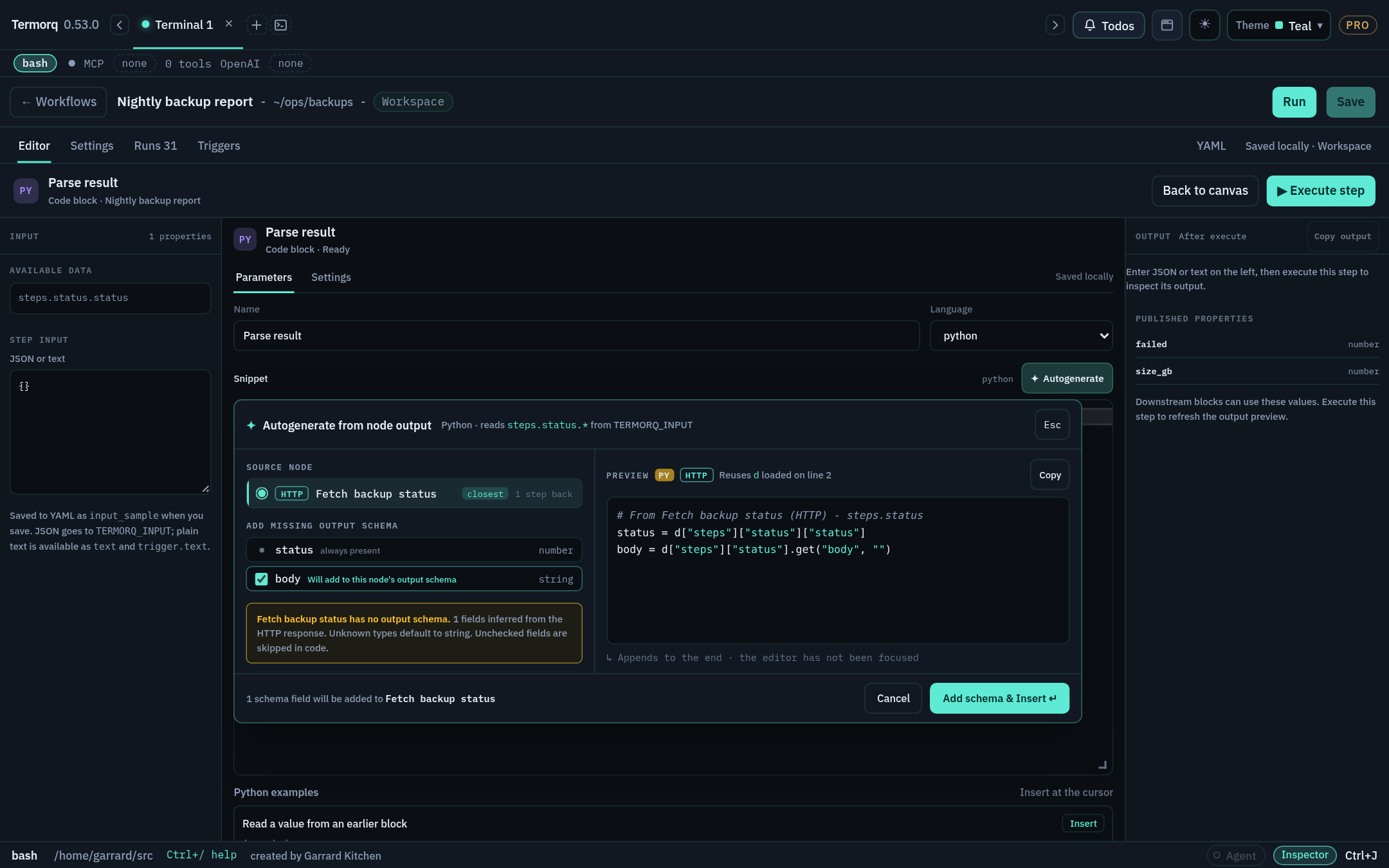
Autogenerate panel with an HTTP source node selected Autogenerate panel with an HTTP source node selected

Steps

  1. Open a Code block’s code editor and click where you want the code to go. The panel remembers the cursor position. If you never clicked in the editor, the code is appended at the end.
  2. Choose ✦ Autogenerate on the Snippet row.
  3. Choose the Source node. The node wired into this block is selected first. The list shows how many steps back each node is, and shows input if the workflow declares inputs.
  4. Review the fields:
    • AI, and nodes with a complete schema: lists their declared outputs and says Schema complete — nothing to add.
    • HTTP: status (number) is always included. body and any top-level JSON keys from the last run are marked Will add to this node’s output schema.
    • MCP, and code without a schema: shows an inferred checklist (text, tool-result fields, or keys from the last run). Fields whose type can’t be inferred are shown in amber with a type picker, defaulting to string. Unchecked fields are left out.
  5. Check the Preview, which is written in the block’s language. If code above the cursor already opens TERMORQ_INPUT, the preview reuses that variable. Bash previews use jq.
  6. Choose Insert, or Add schema & Insert if fields will be added to the source node’s schema.

What Insert changes

  • The code goes on its own lines, tinted teal with an Inserted at cursor (or Appended) badge.
  • Each path, such as steps.fetch_users.status, is added to this block’s uses.
  • Any new fields are added to the source node’s output schema, so Available data and Save accept them.
  • Undo in the notice restores the snippet, uses, and the source schema together. The tint and the notice last 10 seconds by default. You can change this to between 1 and 60 seconds under Settings → Workflows → Code editor.
Tip

Run the workflow once before you use Autogenerate on an HTTP or MCP source. The panel infers fields from the last run, so it can offer real keys rather than guesses.

Check your run

In the HTTP mock workflow, add a Python block after ping and autogenerate from ping. The preview reads data["steps"]["ping"]["status"], and after Insert, uses contains steps.ping.status.

Exercise

Autogenerate the same block in Bash. What does the preview use to read values?

Details

jq, for example status=$(jq -r '.steps.ping.status' "$TERMORQ_INPUT"). The exact generated lines may differ slightly between releases.

Reference: Autogenerate code from an earlier node