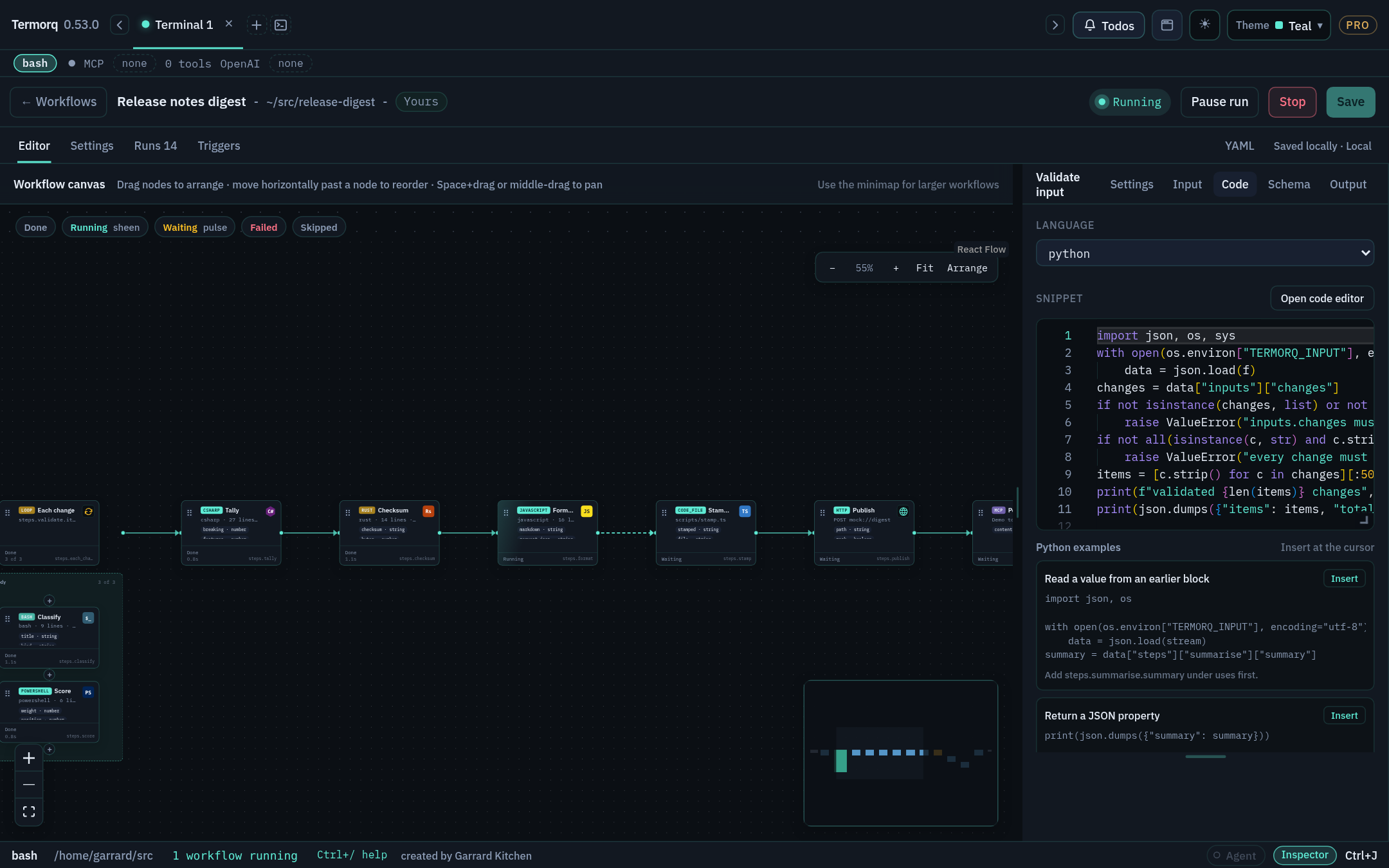
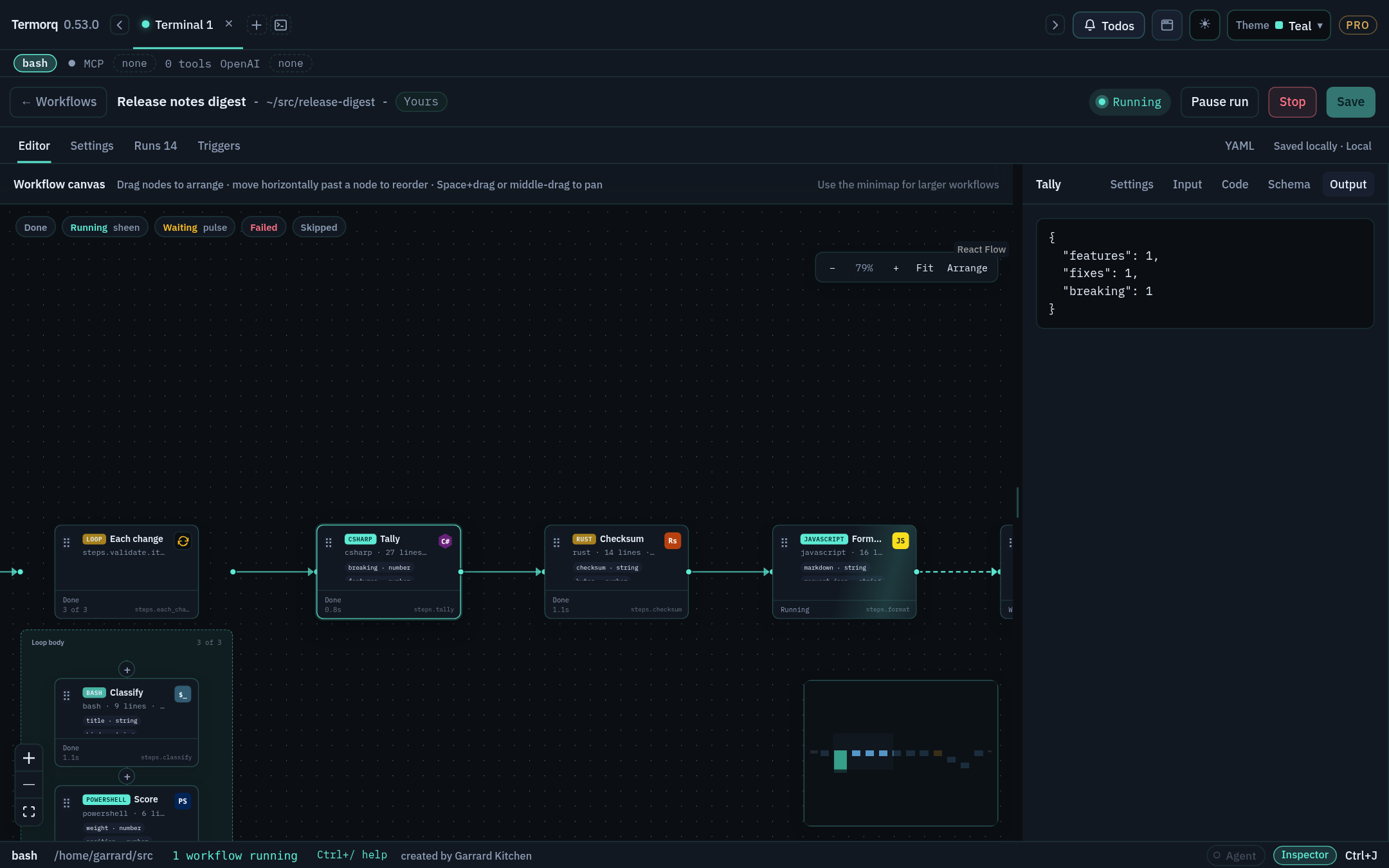
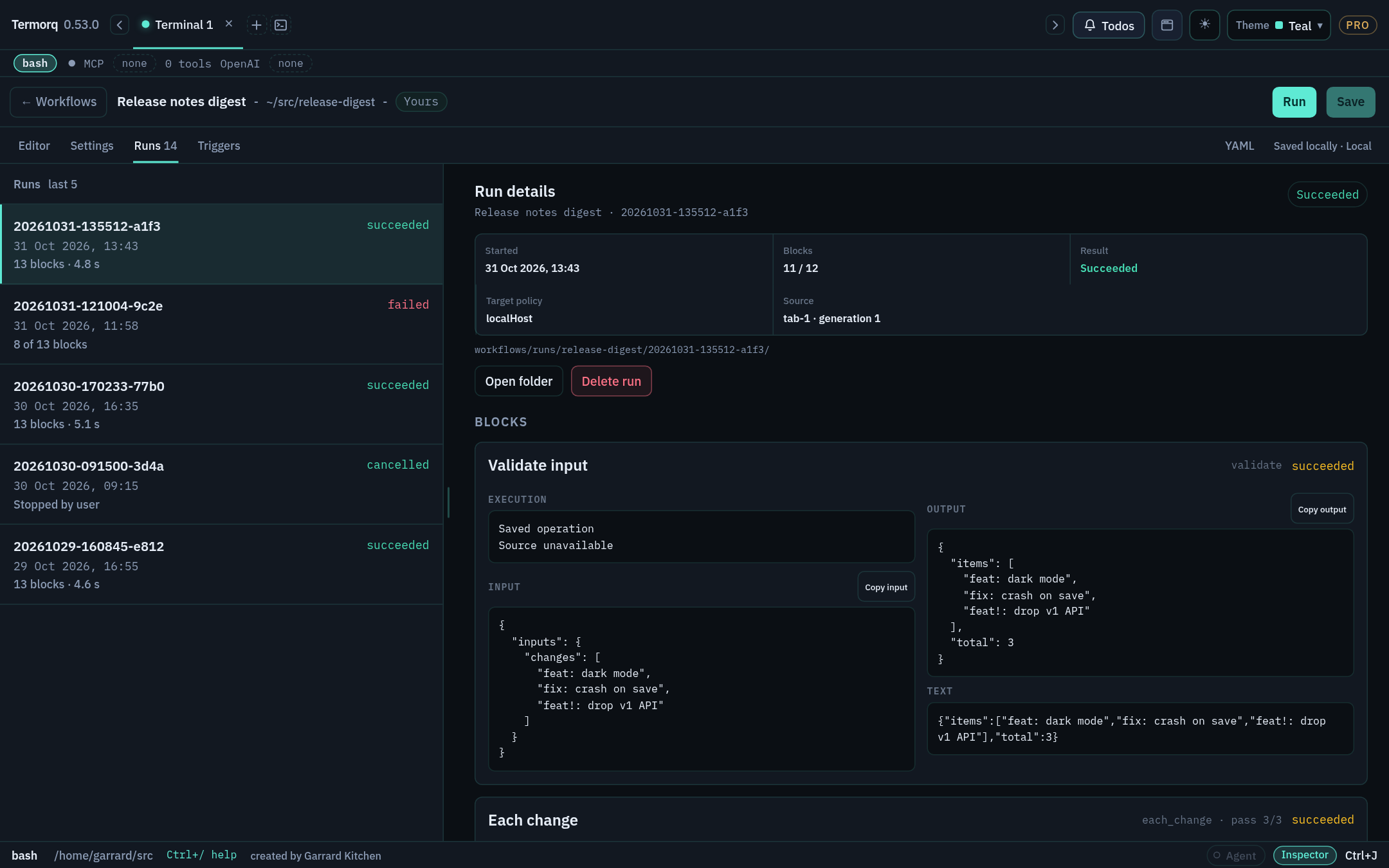
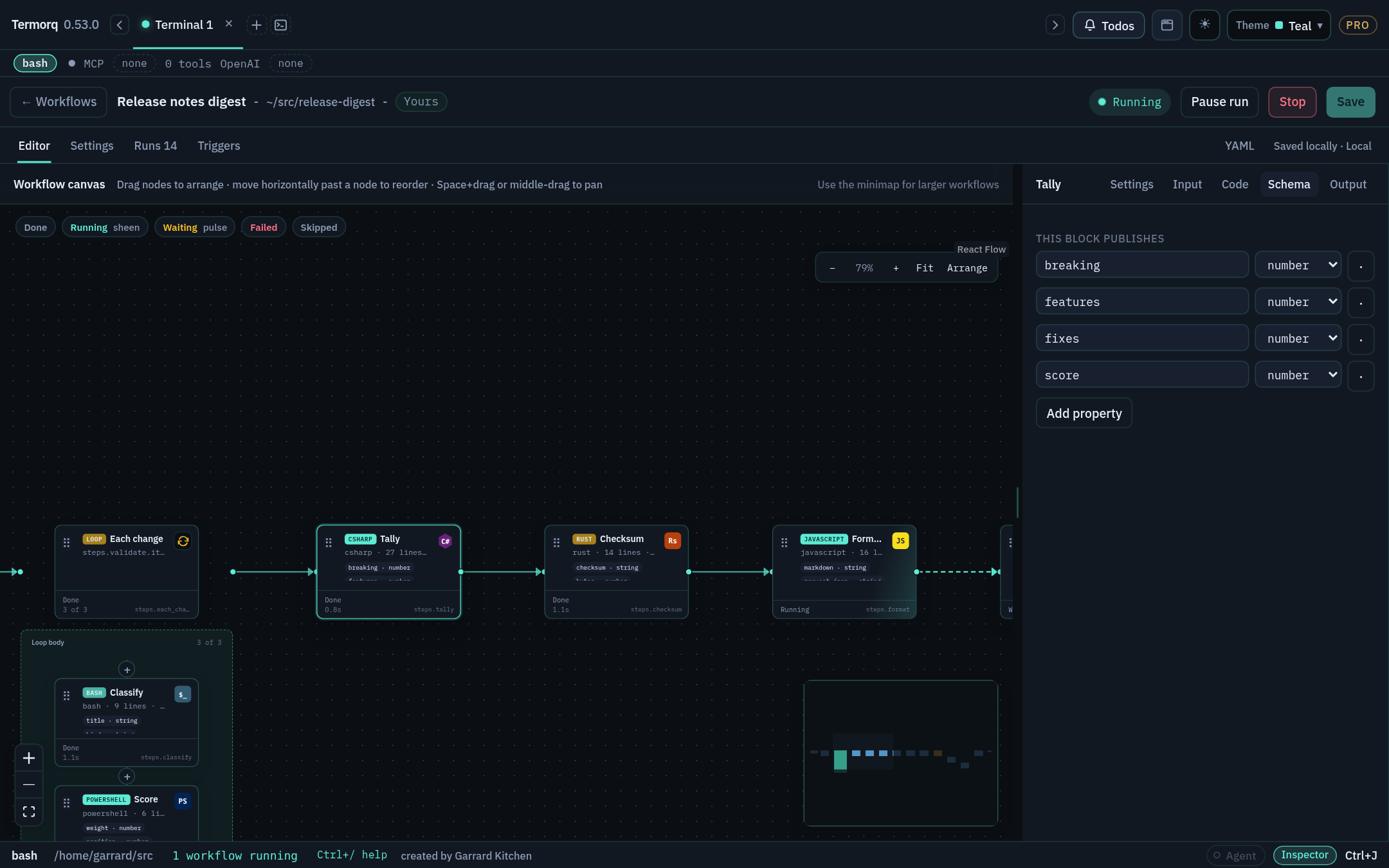
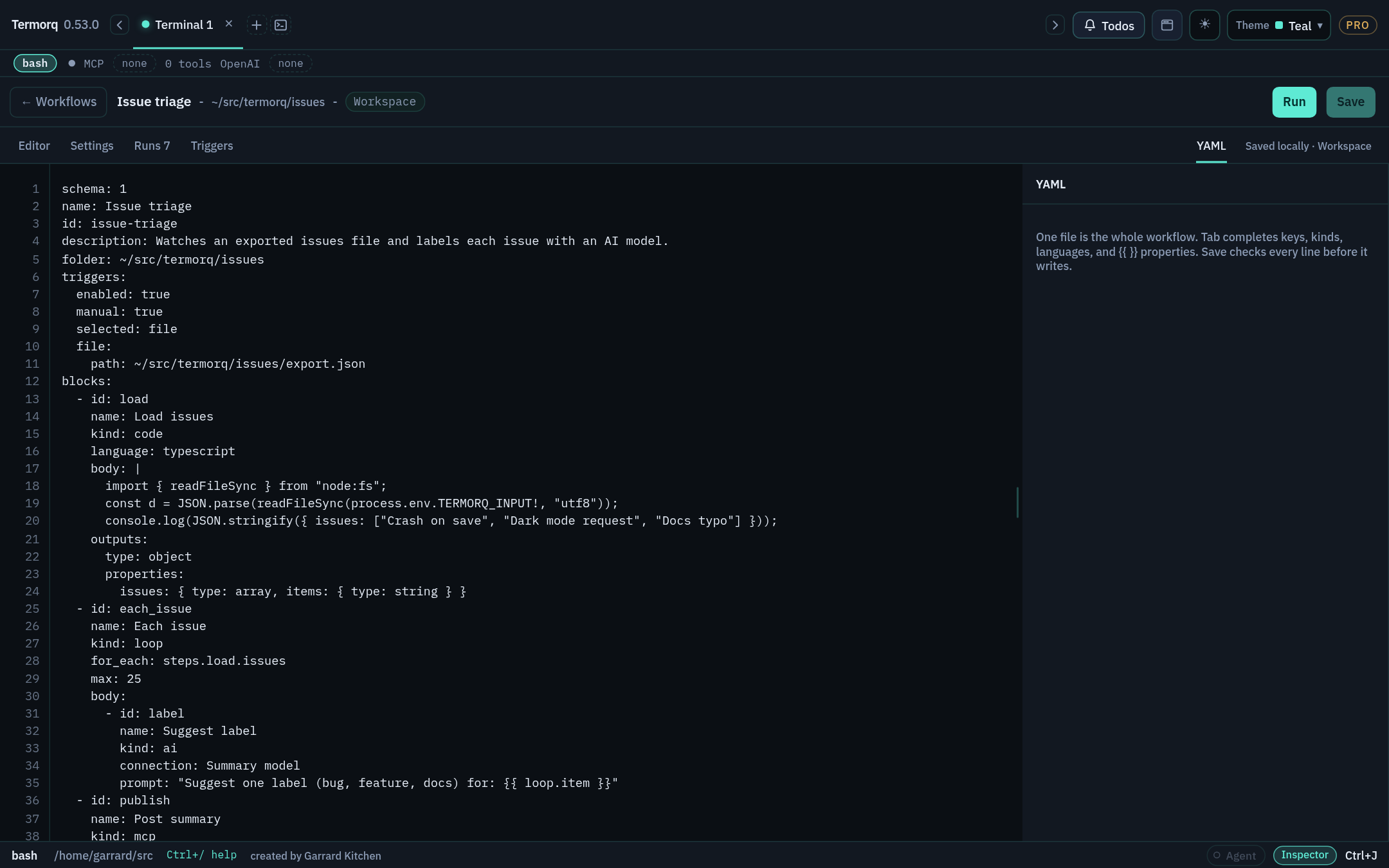
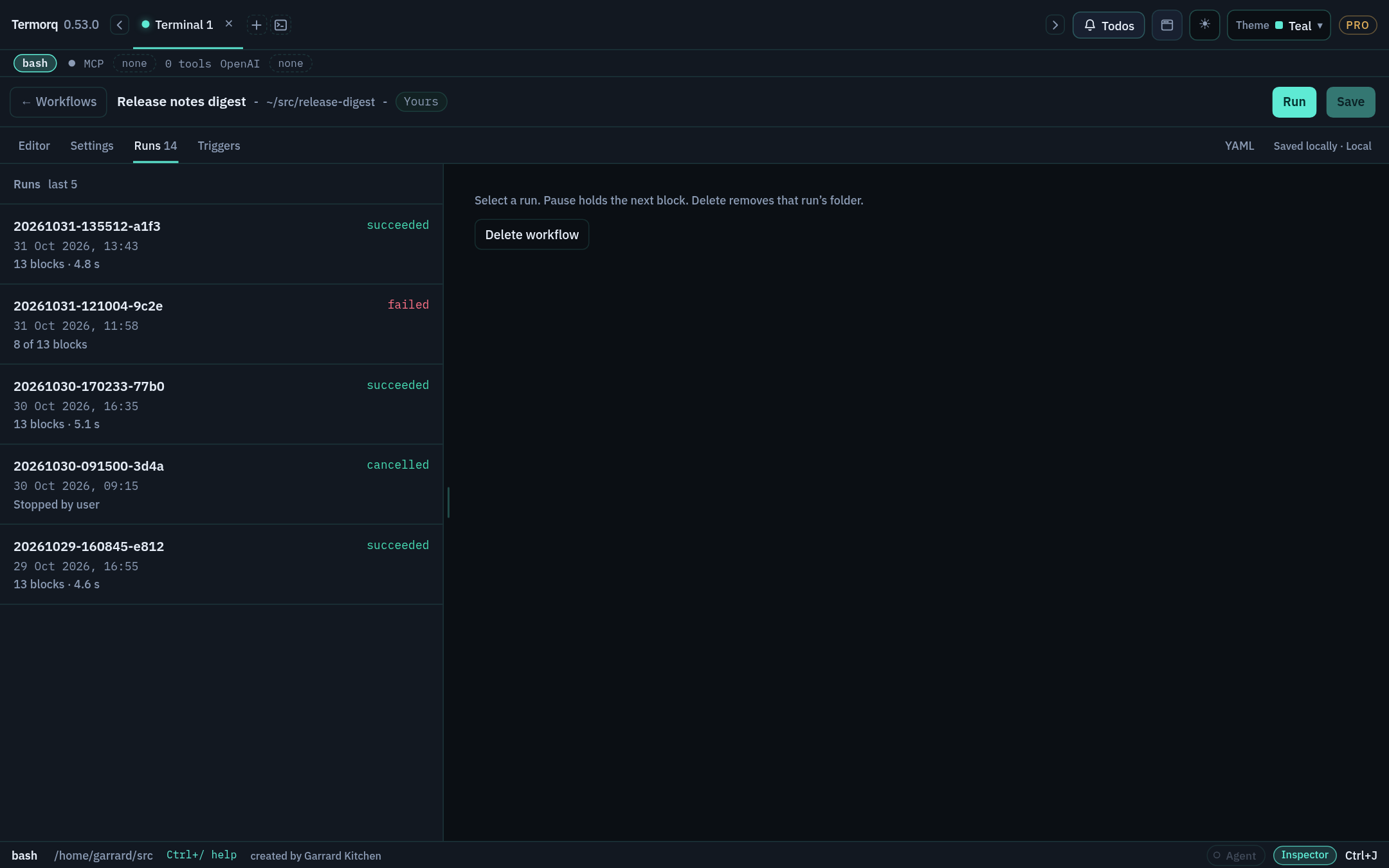
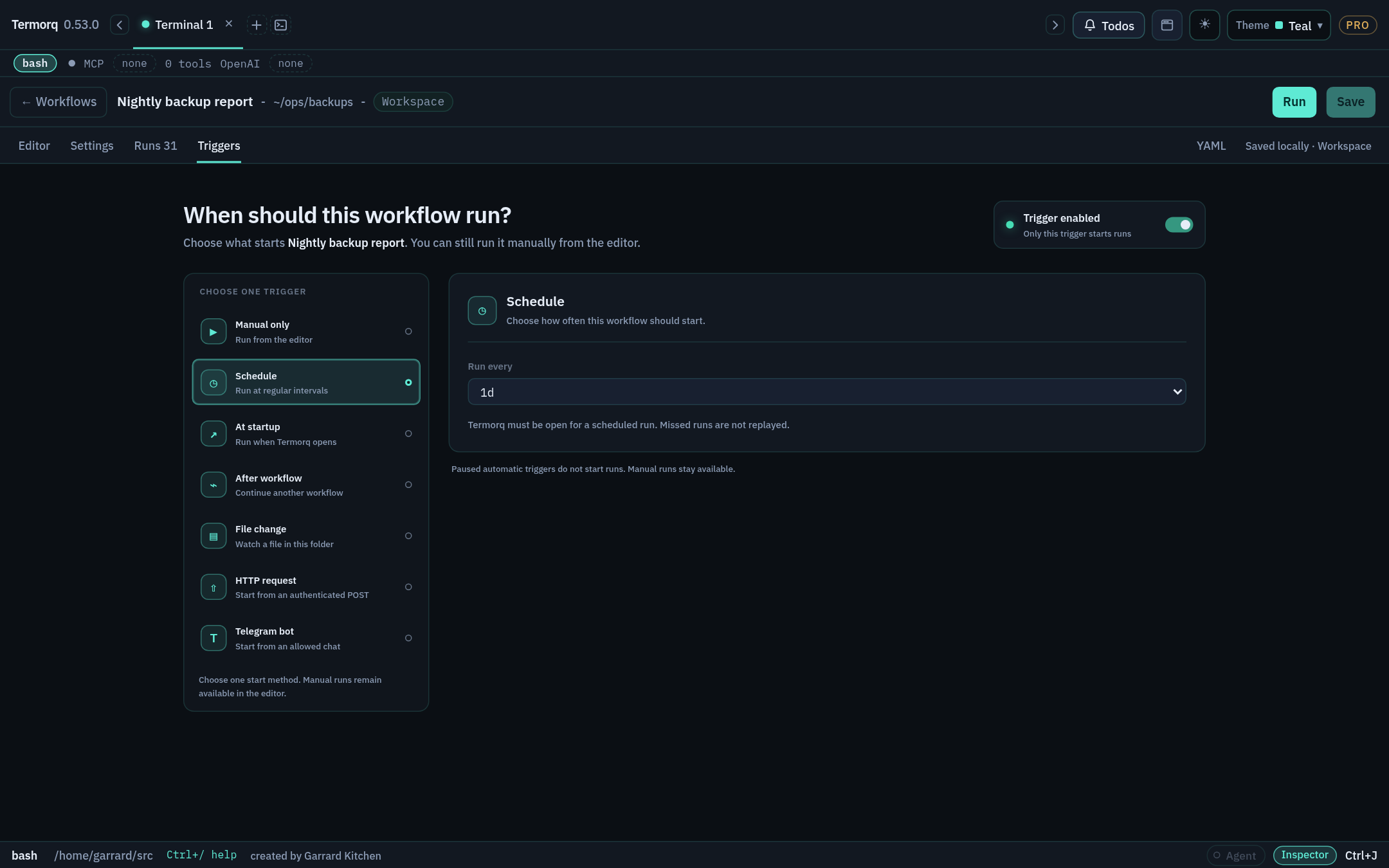
A workflow is a saved sequence of blocks. It can run code in seven languages, call saved HTTP endpoints and MCP tools, ask an AI model, branch, and loop. You can start it by hand or with a trigger. Each workflow is one YAML file, and each run gets its own folder.
The course runs in order from Stage 0 to Stage 10. Each stage is a section in the sidebar, and each lesson takes 5–20 minutes.
The list, filters, the canvas, the properties inspector, and the YAML tab.
Subsections of 0 · Orientation
What is a workflow?
Goal
Learn the terms used in the rest of the course. Time: 5 minutes. Needs: nothing.
A workflow is a sequence you’ll want to run again. In Termorq it is one YAML file. The Editor tab shows it as a canvas and the YAML tab shows the same file as text. Changes on one tab appear on the other, because both edit the same file.
The vocabulary
Term
Meaning
Block (or node)
One step. A node on the canvas is a block in the YAML.
Kind
The block’s type: code, code_file, http, mcp, ai, decision, or loop. The editor also lists git (Git file), but it isn’t runnable yet.
Property
A named value that a block publishes, such as steps.lookup.total.
Output schema
The outputs: declaration listing the properties a block promises to publish and their types.
uses
The list of properties a code block reads. Termorq writes those properties into a JSON file for the block.
Run
One execution. Each run gets its own folder with run.json, logs, and a files/ directory.
Trigger
What starts the workflow automatically: a schedule, app startup, another workflow, a file change, an HTTP request, or a Telegram message. Manual Run is always available.
How data flows
flowchart LR
  T["Trigger<br/>trigger.text"] --> A["Code block<br/>uses: trigger.text"]
  A -->|"steps.a.message"| B["HTTP block<br/>{{ steps.a.message }}"]
  B -->|"steps.b.status"| C{"Decision<br/>steps.b.status == 200"}
  C -->|when| D["AI block"]
  C -->|else| E["Code block"]
Data moves forward only through declared properties:
A code block lists the paths it needs under uses. At run time it reads them from a JSON file whose path is in TERMORQ_INPUT.
An HTTP, MCP, or AI block uses {{ steps.<id>.<property> }} templates in its fields.
Every block publishes properties. A later block reads them as steps.<block id>.<property>.
Each code block runs as its own process. A shell variable set in one block doesn’t exist in the next one. To pass a value on, publish it as a property.
Workflows are not runbooks
Termorq also has collection runbooks, Markdown runbooks, and repo runbooks. These are separate features, and nothing in this course changes them.
Check your run
You’re ready to move on if you can answer these: How does block B read a value from block A? (A declares it in outputs, and B lists steps.A.<name> in uses or uses a {{ }} template.) Does export X=1 in one Bash block reach the next block? (No. Each block is its own process.)
Exercise
Draw on paper the data flow for: “every morning, call an API, and if it returns any users, summarise them with AI”. Label each arrow with the property it carries.
Switch Workflows on and confirm that the runtimes you plan to use are on PATH. Time: 10 minutes. Needs: Termorq Pro (or Trial).
Pro feature
Free builds don’t offer the experimental flag or the Workflows page. The edition pill (FREE, TRIAL, or PRO) is at the right of the header.
Steps
Open Settings → Experimental.
Turn on Workflows. It is off by default.
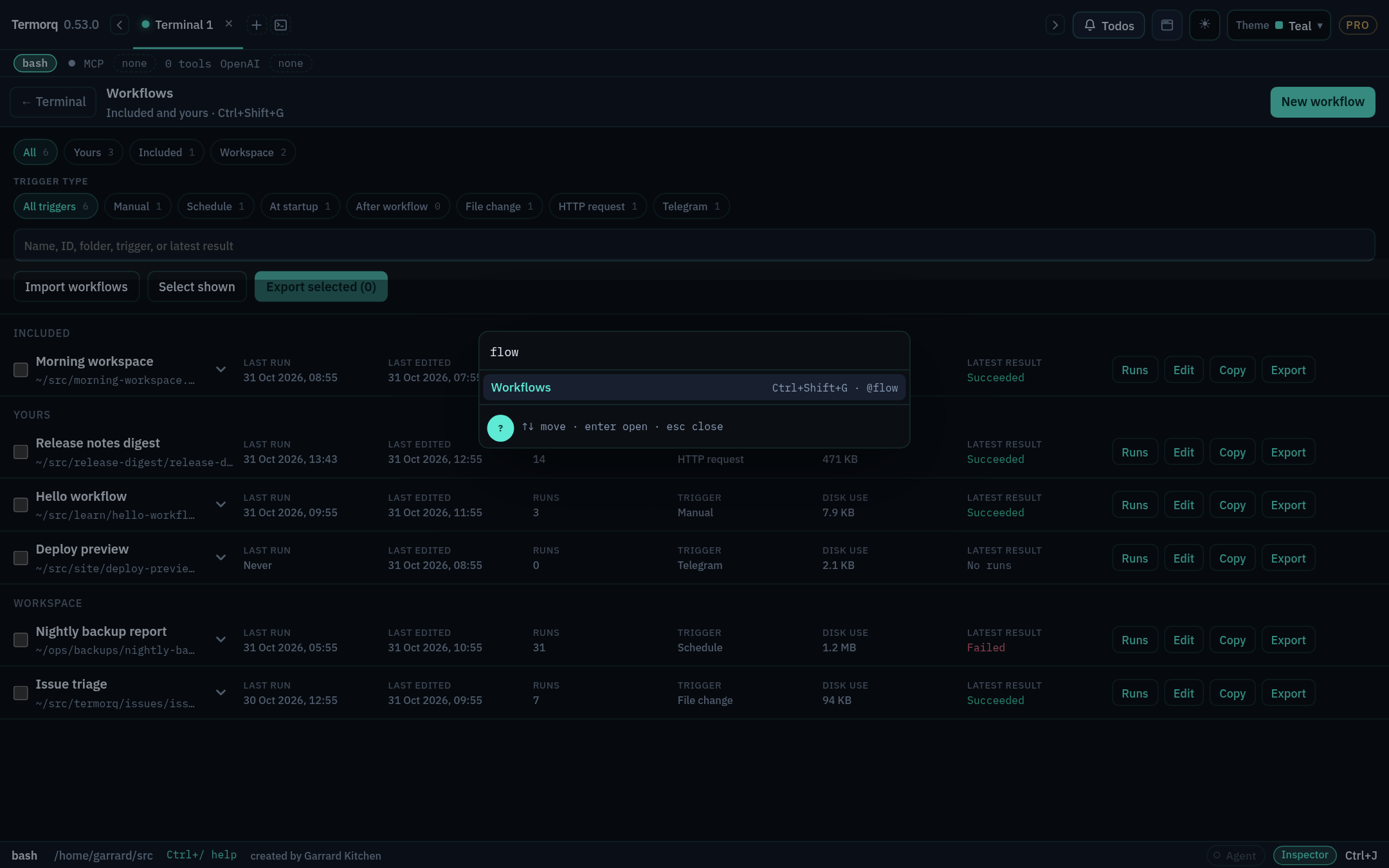
Open the page with Cmd+Shift+G (macOS) or Ctrl+Shift+G (Windows/Linux). You can also open the jump list with Ctrl+J and choose Workflows, or type @flow.
If you later turn the flag off, Termorq hides the page’s entry points and workflow settings. A workflow that is already open stays open until you leave it.
Check your runtimes
Termorq doesn’t bundle language runtimes. The code runner uses whatever is installed on your computer. Run these commands in a Termorq terminal tab:
bash --version | head -1
jq --version # used by Bash JSON examplespwsh --version # PowerShellpython3 --version
dotnet --version # needs 10.0 or later for C#rustc --version # needs Rust 2024 edition supportnode --version # 22.6+ runs TypeScript natively
bash--version# Git Bash or WSL exposed on PATHjq--versionpwsh--versionpython--versiondotnet--versionrustc--versionnode--version
Language
Needs
Bash
bash on PATH. Workflow Bash is always Bash, even if your terminal tab runs another shell.
PowerShell
pwsh (runs with -NoProfile -NonInteractive -ExecutionPolicy Bypass)
Python
Python 3 as python3 or python (runs unbuffered with -u)
C#
.NET SDK 10+ (single-file app via dotnet run)
Rust
rustc with edition 2024 (--edition 2024 -O), without Cargo
JavaScript
Node.js (runs as an ES module, snippet.mjs)
TypeScript
Node.js 22.6+ native type stripping, or a tsx executable
Warning
If you install a runtime while Termorq is open, restart Termorq so it can find the runtime.
Check your run
The Workflows page opens and lists at least the Included workflows, such as Refresh Acme users and Probe mock. Each runtime you plan to use prints a version.
Exercise
Find out which Node.js version you have. Will TypeScript blocks run natively, or will they need tsx?
Details
node --version 22.6 or newer: native type stripping is used, even if tsx is also installed. Older: install tsx (npm i -g tsx) and restart Termorq.
Find every part of the Workflows page you’ll use in later stages. Time: 10 minutes. Needs: Workflows enabled.
The list
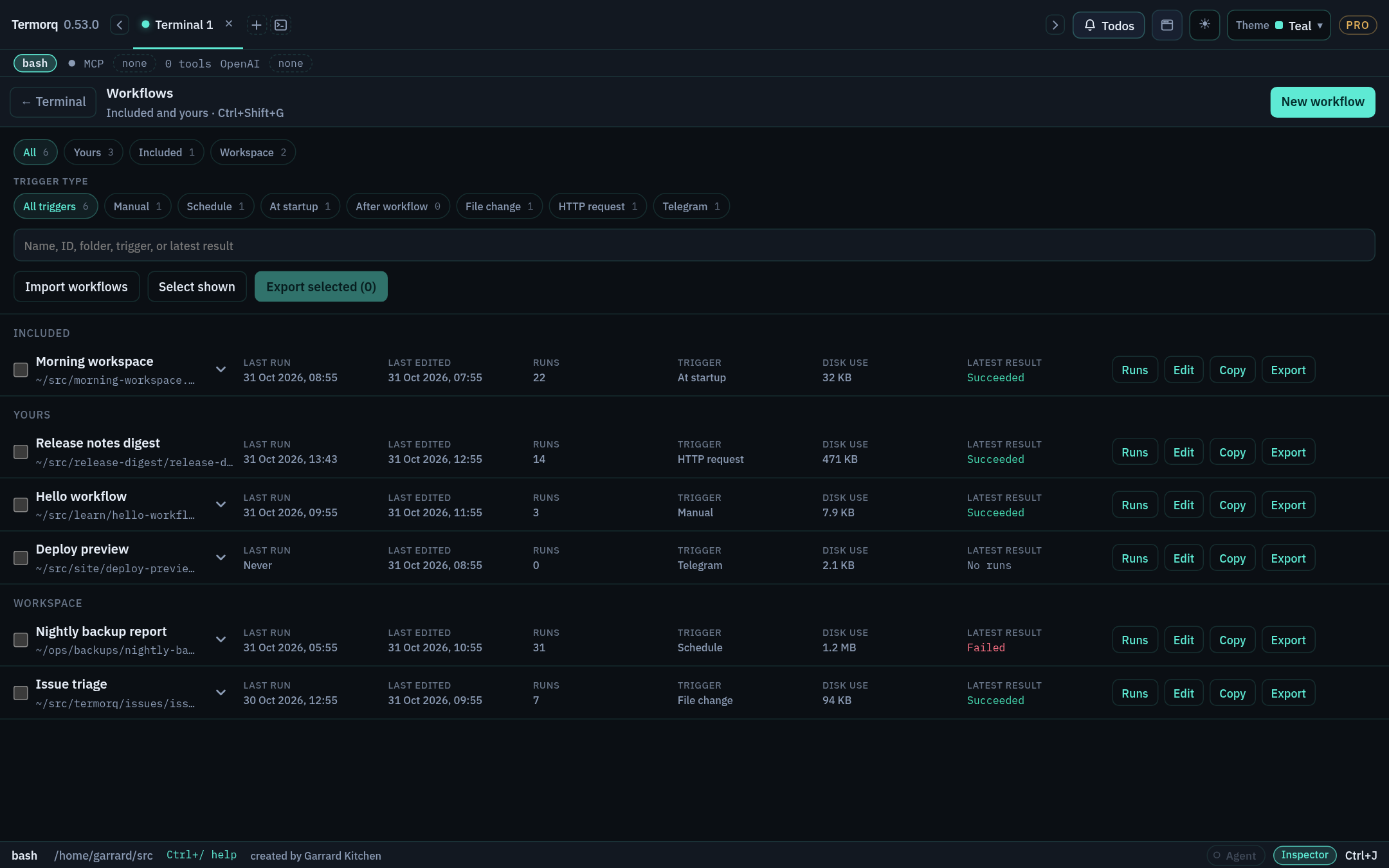
The All, Yours, Included, and Workspace chips filter by source.
The trigger pills filter by trigger type: Manual, Schedule, At startup, After workflow, File change, HTTP request, Telegram.
Each row shows the trigger, last edited and run times, run count, disk use, and the latest result. Its actions are Runs, Edit, Copy, Export, and Delete. Delete appears when you hover over or focus the row.
Included workflows are read-only. Use Copy to make your own editable version. A copy starts with its triggers paused.
The editor
Area
What it’s for
Canvas
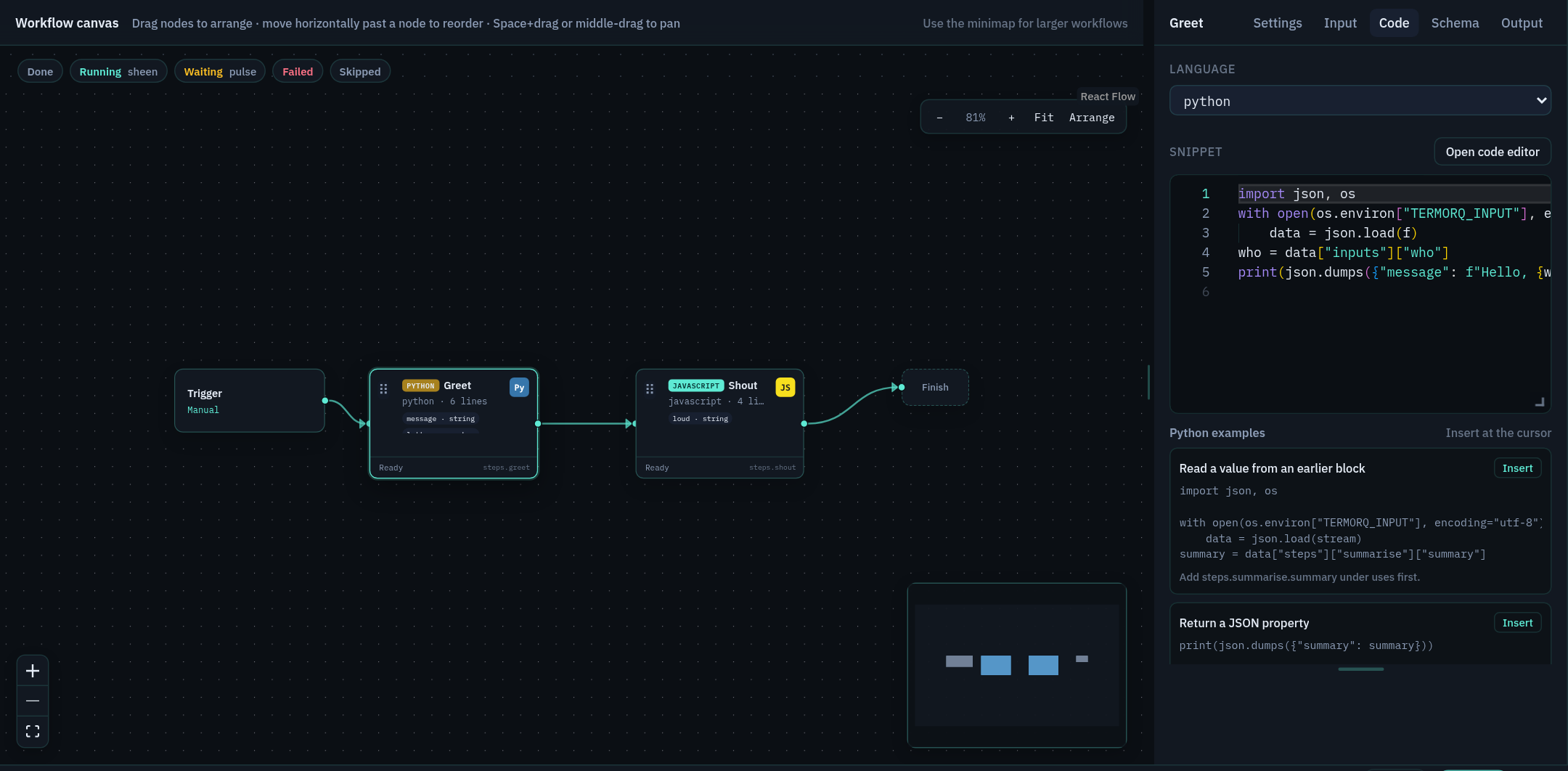
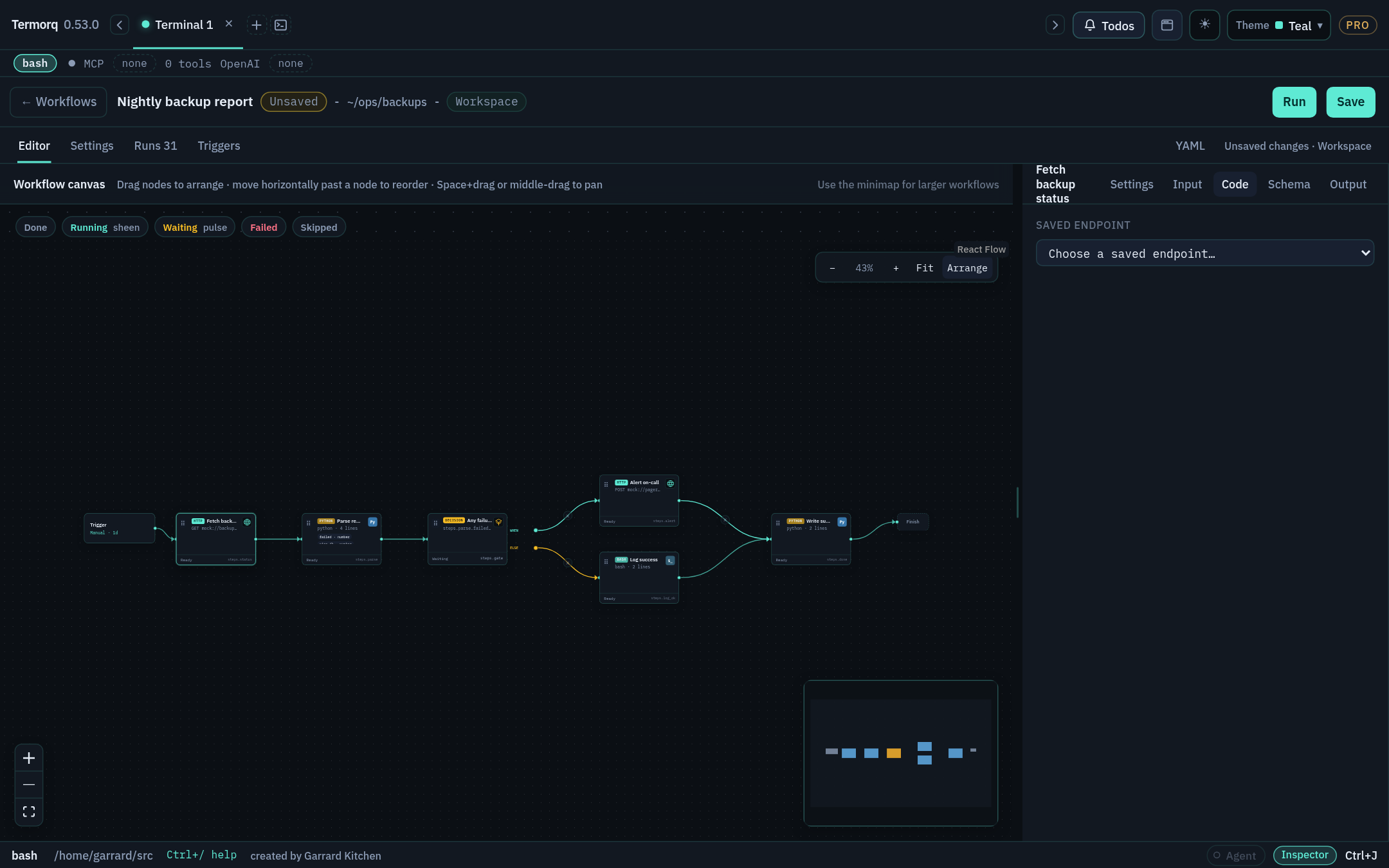
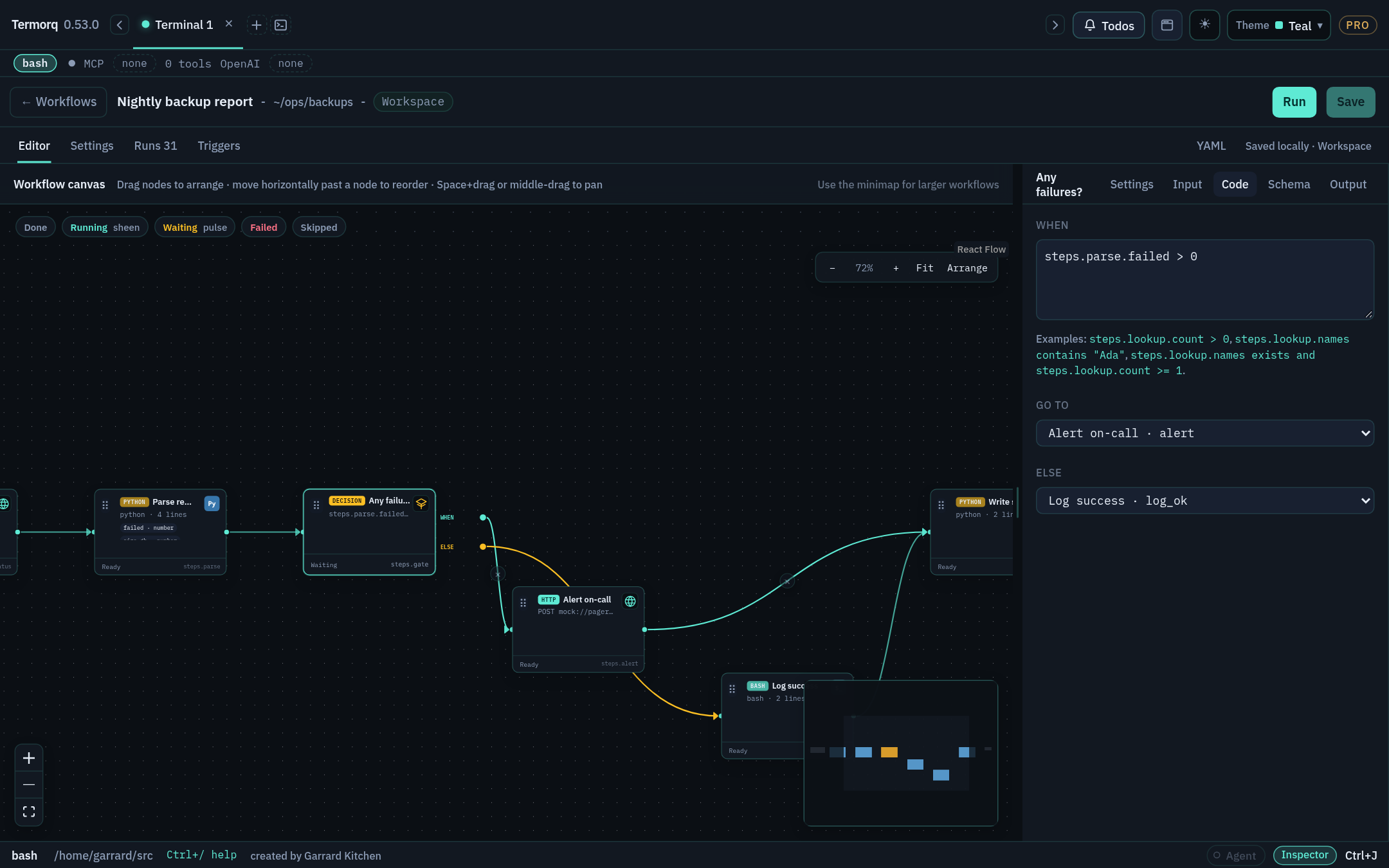
Blocks run left to right in file order. Drag a block’s output connector onto empty canvas to add a block, or use + between blocks. Arrange lays the flow out for you, Fit zooms to show everything, and the minimap helps you move around large workflows.
Properties inspector (right)
Has five tabs: Settings (name, Node execution), Input (read-only Available data with type pills), Code, Schema, and Output.
Settings (beside Editor)
Workflow name, working folder, block timeout, and description (Markdown).
YAML tab
The same workflow as text. Tab completes keys, legal values, and {{ }} properties.
Triggers
Choose the one active automatic trigger.
Runs
This workflow’s run history.
Keyboard and navigation
Action
Keys
Open or close Workflows
Cmd/Ctrl+Shift+G
Jump list
Ctrl+J → Workflows
Open a workflow by name
@flow Refresh Acme users
Pan the canvas
Hold Space and drag, or use the middle mouse button
Close a picker
Esc
Runs keep going after you leave the page. When a run is in progress, the footer shows a chip such as 1 workflow running. Click it to go back to the page.
Check your run
Open the included Refresh Acme users workflow. Find its four blocks on the canvas, then open the YAML tab and find the same four id: lines.
Exercise
CopyProbe mock so that you have an editable version under Yours. What happened to its triggers?
Details
The copy gets a new, unique ID and no run history, and its automatic triggers start paused. You’ll learn how to arm triggers in Stage 8.
You can also paste YAML straight into the YAML tab and switch back to Editor. The rest of the course often gives you YAML to paste, because it’s the quickest way to get to a known starting point.
Check your run
Check your run
The card shows Running, then Done.
Properties → Output shows ok: true, together with exit: 0 and status: ok.
Your terminal stayed usable throughout, because workflows don’t block the prompt.
Why the last line matters
Because the block declares an output (ok), the last non-empty line of stdout must be one JSON object, and that object must include ok as a boolean. Stage 2 covers this rule in detail.
Exercise
Change the snippet to print Starting… before the JSON line. Does the block still pass? Then try printing Doneafter the JSON.
Details
echo Starting… followed by echo '{"ok":true}' passes, because only the last non-empty line is parsed. Printing Done after the JSON fails with The last non-empty line of code output must be a JSON object. Send diagnostic messages to stderr (echo Done >&2) instead.
Build a two-block workflow where block 2 reads a value that block 1 published. Time: 10 minutes. Needs: Python 3.
Steps
Create a new workflow and paste this into the YAML tab:
schema:1name:Pass a valueid:pass-a-valueblocks:- id:make_namename:Make namekind:codelanguage:pythonbody:| import json
print(json.dumps({"name": "Ada"}))outputs:type:objectproperties:name:type:string- id:greetname:Greetkind:codelanguage:pythonuses:[steps.make_name.name]body:| import json, os
with open(os.environ["TERMORQ_INPUT"], encoding="utf-8") as f:
data = json.load(f)
name = data["steps"]["make_name"]["name"]
print(json.dumps({"greeting": f"Hello, {name}!"}))outputs:type:objectproperties:greeting:type:string
Switch to Editor. Each card shows steps.<id> near its lower edge.
Select Greet and open Properties → Input. Available data lists steps.make_name.name with a string pill.
Click Save, then Run.
What happened
make_name printed {"name": "Ada"} as its last line. Because name is declared in outputs, Termorq published it as steps.make_name.name.
greet listed steps.make_name.name under uses. Termorq wrote a temporary JSON file containing only that value, keeping its nesting:
{"steps":{"make_name":{"name":"Ada"}}}
TERMORQ_INPUT holds the path to that file, not the JSON itself.
Warning
Code bodies are not template-expanded. Writing {{ steps.make_name.name }} inside Python source doesn’t insert the value. Always use uses and read the input file.
Check your run
Check your run
Greet → Output shows greeting: "Hello, Ada!". On the Runs tab, select the latest run: the Greet row shows the value passed through uses.
Exercise
Add a third block, shout, that reads steps.greet.greeting and publishes it upper-cased as loud.
Details
- id:shoutkind:codelanguage:pythonuses:[steps.greet.greeting]body:| import json, os
data = json.load(open(os.environ["TERMORQ_INPUT"], encoding="utf-8"))
print(json.dumps({"loud": data["steps"]["greet"]["greeting"].upper()}))outputs:type:objectproperties:loud:type:string
Save, and fix what Save rejects
Goal
Break a workflow on purpose, read the Not saved panel, and fix it. Time: 5 minutes.
Save checks the draft before writing anything. If the check fails, Termorq doesn’t write the file, doesn’t leave the page, and doesn’t start a run. The Not saved panel lists up to 20 reasons, one per line:
Line 19: property 'foo' is not recognised.
Line 23, column 13: malformed YAML.
Steps
Open your Pass a value workflow in YAML.
Add colour: blue under the greet block and click Save. The panel says property 'colour' is not recognised.
Change uses: [steps.make_name.name] to uses: [steps.make_name.nme] and click Save again. Save says 'steps.make_name.nme' is not a property this block can use., because make_name doesn’t declare nme.
Undo both changes and Save.
Rules the checker enforces
Rule
Example
Workflow id: a letter, then letters, numbers, or hyphens
refresh-acme-users ✓ · 1st_flow ✗
Block id: letters, numbers, or underscores
list_users ✓ · list-users ✗
schema, name, id, blocks are required
'blocks' is missing.
At most 40 blocks per file, including nested loop bodies
a workflow can have 40 blocks.
Each block allows only the keys valid for its kind
property 'url' is not recognised. on a code block
Every uses path and {{ }} template must name something reachable: a declared earlier output, a declared inputs.<name>, a declared secrets.<name>, a supported trigger.<field>, or loop.* inside a loop
'inputs.city' is not a property this block can use.
Names are unique, ignoring capitalisation and surrounding spaces
Two workflows named Deploy and deploy can’t both exist
Unsaved edits
The title shows Unsaved until you save.
Run uses the draft on screen. It doesn’t write the file.
If you leave with unsaved changes (via Back, Esc, the shortcut, or the jump list), Termorq asks Stay, Discard, or Save. Focus starts on Stay.
Check your run
After you undo your changes, Save succeeds and the Unsaved marker disappears.
Exercise
Rename the block make_name to make-name (with a hyphen). How many reasons does Save report, and why?
Details
At least two. The ID itself is invalid, because block IDs can’t contain hyphens. The greet block’s uses also still points at steps.make_name.name, which no longer exists. Renaming a producer means updating every consumer.
Learn what each run state looks like, and find a failed block quickly. Time: 10 minutes.
Watching a run
On the canvas
Meaning
Accent border and sheen, with a dot travelling to the next block
Running
Pulse
Waiting
One shake, then red
Failed. The editor selects the block, scrolls to it, and opens Output with the error
Skipped
The node is disabled, or a decision didn’t route to it
With prefers-reduced-motion: reduce, the colours and labels stay and the motion is turned off.
Make it fail
In Pass a value, change the greet body’s last line to print("not json").
Click Run. Greet turns red, and Output says the last non-empty line must be a JSON object.
Open the Runs tab and select the run. Every block captured at the start of the run is listed. Blocks that never ran are marked not run.
Use Copy input and Copy output on a block to copy exactly what it received and returned. Secret values stay masked.
Fix the line and run again.
Pause and Stop
Pause run lets the current block finish, then holds the next one.
Stop ends the process tree immediately, without asking for confirmation.
Check your run
Runs lists two runs: one failed and one successful. Each has a local date and time.
Exercise
Add import time; time.sleep(10) to the start of Make name, run the workflow, and click Pause run straight away. What does Greet show while the run is paused?
Details
Make name finishes, because Pause waits for the active block. Greet is held and doesn’t start until you Resume. Stage 7 covers Edit rest and Apply on paused runs.
Stage 2 · The programming model
Every Code and Code file block in every language follows the same contract:
flowchart LR
U["uses:<br/>trigger.text<br/>steps.lookup.total"] --> F["Temp JSON file (0600)<br/>{trigger:{text}, steps:{lookup:{total}}}"]
F -->|"path in TERMORQ_INPUT"| P["Your program<br/>(cwd = run files/)"]
P -->|"stderr: diagnostics"| L["Block log"]
P -->|"last non-empty stdout line:<br/>one JSON object"| O["Published properties<br/>steps.<id>.<prop>"]
Once you understand this stage, you can write blocks in any of the seven supported languages.
You read data["trigger"]["text"], not a flattened data["text"].
Try it
Paste this workflow. It uses a mock HTTP block, so it makes no network calls:
schema:1name:Read inputid:read-inputblocks:- id:lookupkind:httpmethod:GETurl:mock://usersoutputs:type:objectproperties:path:type:string- id:showkind:codelanguage:pythonuses:[steps.lookup.status, steps.lookup.path]body:| import json, os, sys
path = os.environ["TERMORQ_INPUT"]
print(f"input file: {path}", file=sys.stderr)
with open(path, encoding="utf-8") as f:
data = json.load(f)
print(json.dumps({"summary": f"{data['steps']['lookup']['path']} -> {data['steps']['lookup']['status']}"}))outputs:type:objectproperties:summary:type:string
Check your run
show → Output contains summary: "users -> 200". The stderr line shows a temporary path. The file is created with mode 0600 on Unix and deleted when the block ends.
When there’s no input
If uses is empty, a full run provides no input file, so TERMORQ_INPUT is unset.
If a listed path isn’t available, for example because the trigger didn’t provide trigger.text, the block fails before your code starts. Listing a path doesn’t give it a default value.
Tip
Request only the values a block needs. This is good data minimisation, because a block can’t leak data it never received. It isn’t a sandbox, though: your code still runs with your user’s permissions.
Exercise
Rewrite show in Bash using jq. It should publish the same summary property.
Details
set -euo pipefail
jq -c '{summary: "\(.steps.lookup.path) -> \(.steps.lookup.status)"}'"$TERMORQ_INPUT"
Set language: bash on the block. jq -c prints a single compact line, which satisfies the last-line rule.
<prop> is declared in that block’s outputs, or is always published (status, exit, duration_ms)
steps.<loop id>.results
Every pass of a loop
After the loop
loop.item, loop.index, loop.count
The current loop pass. loop.index starts at 1
Only inside a loop body
secrets.<name>
The secret store, resolved at run time
<name> is listed under the root secrets: key
Declaring inputs and secrets
schema:1name:Greet a cityid:greet-citysecrets:- WEATHER_API_KEYinputs:city:type:stringblocks:- id:greetkind:codelanguage:pythonuses:[inputs.city, secrets.WEATHER_API_KEY]body:| import json, os
data = json.load(open(os.environ["TERMORQ_INPUT"], encoding="utf-8"))
key_present = bool(data["secrets"]["WEATHER_API_KEY"])
print(json.dumps({"line": f"Hello {data['inputs']['city']}", "has_key": key_present}))outputs:type:objectproperties:line:type:stringhas_key:type:boolean
Warning
Never print a secret. Termorq redacts known secret values from logs and masks them in the run record, but the safest secret is one that never reaches stdout. Keep secrets out of input_sample too.
Check your run
Delete secrets: and click Save. Save reports 'secrets.WEATHER_API_KEY' is not a property this block can use. Put it back and the workflow saves.
Exercise
Move uses: [loop.item] onto a top-level block (one that isn’t in a loop). What does Save say?
Details
'loop.item' is not a property this block can use.loop.* paths are only valid inside a loop’s body. See Stage 5.
Publishing output and the output schema
Goal
Publish typed properties that downstream blocks can rely on. Time: 15 minutes.
Two modes
Mode
When
What gets published
Structured
The block declares custom properties under outputs
The last non-empty stdout line must be one JSON object containing every declared property with the declared type
Plain
There are no custom output declarations
text (raw stdout), exit (exit code), and status: ok
Both modes also record exit, status, and duration_ms. A non-zero exit code fails the block.
The schema supports the keys type, properties, items, enum, secret, and required. Termorq checks each declared property for presence and type (string, number, boolean, object, or array). The run fails if a property is missing or has the wrong type, or if the last line isn’t a JSON object.
A property marked secret: true is drawn in the warning colour on the canvas and masked in run records.
Try it: three ways to fail
Start with this block, which passes:
schema:1name:Output rulesid:output-rulesblocks:- id:emitkind:codelanguage:pythonbody:| import json, sys
print("diagnostics go to stderr", file=sys.stderr)
print("an early stdout line is fine")
print(json.dumps({"count": 2, "names": ["Ada", "Lin"]}))outputs:type:objectproperties:count:{type:number }names:{type:array, items:{type:string } }
Now make each of these changes in turn and run the workflow again:
Change "count": 2 to "count": "2". The type check fails.
Use json.dumps(..., indent=2). The output is pretty-printed, so the last line is just }. It fails.
Print [1,2] last. An array isn’t an object, so it fails.
Warning
text is reserved for raw stdout. Name your business data something else, such as message, summary, or body_text. Also, outputs isn’t a file name: Termorq doesn’t read a file to find your output.
Artifacts are different
To produce a file, such as a CSV report, write it to $TERMORQ_OUTPUT, which is the run’s files/ directory. Writing a file there doesn’t publish a property. To tell later blocks where the file is, publish its name:
After the three failing experiments, restore the passing version. emit → Output shows count: 2 and names: ["Ada","Lin"]. Its Input tab, as seen from a later block, shows number and array type pills.
Exercise
Add an enum so that a level property must be low, medium, or high, and publish "medium".
Return ok (on its own, or with other properties) correctly in every language. Time: 5 minutes.
ok is an ordinary boolean property, but it’s an important convention. Shell blocks generated by session capture always end by printing {"ok":true} and declare ok: boolean. The editor’s insertable examples include Return a successful result and Return ok and a property for every language.
If a block declares ok, the last line must include it as a boolean. The string "true" fails.
fnmain(){// No JSON library without Cargo: only safe when summary has no quotes, backslashes, or newlines.
letsummary="3 files cleaned";println!("{{\"ok\":true,\"summary\":\"{}\"}}",summary);}
Command Prompt isn’t one of the workflow languages. To run a cmd.exe command, use a PowerShell block with the editor’s Run a Command Prompt command example. It runs the command through %ComSpec% and exits with the command’s failure code.
Check your run
Each variant publishes ok: true and summary: "3 files cleaned".
Exercise
Make the Bash version publish ok: false when a directory called logs doesn’t exist in the run’s working directory, without failing the block.
The script exits with 0, so the block passes. A later Decision can then branch on steps.<id>.ok == true.
Test one block with Execute step
Goal
Iterate on a single code block in seconds, without triggers or a new entry on Runs. Time: 10 minutes.
Steps
Select a Code block and choose Open code editor.
Type JSON or plain text in Step input.
Choose Execute step. Only this block runs. The output panel shows stdout, errors, and published properties.
Copy output copies everything in that panel.
Save the workflow to keep the sample as input_sample.
How Step input becomes the input file
You type
TERMORQ_INPUT file contains
A JSON object, array, number, boolean, or null
That JSON
Plain text (including a JSON string value)
Raw text. It’s also available as inputs.text and trigger.text
Nothing
{}
Text starting with { or [ that isn’t valid JSON
Rejected
Important
In Execute step, Step input is the file. It isn’t built from uses. To reproduce a full run, type the same nested shape that uses would produce, for example {"trigger":{"text":"Hello"}}, not {"text":"Hello"}.
input_sample in YAML
- id:echokind:codelanguage:pythonuses:[trigger.text]input_sample:|- {"trigger":{"text":"Hello from curl"}}body:| import json, os
data = json.load(open(os.environ["TERMORQ_INPUT"], encoding="utf-8"))
print(json.dumps({"message": data["trigger"]["text"]}))outputs:type:objectproperties:message:{type:string }
input_sample is a test fixture. A trigger or a full run never uses it as a default. A passing Execute step doesn’t prove that the real trigger supplies every path in uses.
Check your run
Execute step shows message: "Hello from curl", and the Runs tab gets no new entry.
Exercise
Type the plain text Hello (without quotes) into Step input. The block above fails. Change the body so it handles both the nested JSON shape and plain text.
timeout_secs (default 600) limits how long each block can run. You can change the default for new workflows under Settings → Workflows.
Check your run
The stderr log shows cwd=…/runs/env-demo/<run id>/files, and the output is region: "eu-west".
Exercise
Set timeout_secs: 2 and add sleep 5 to the block. What happens?
Details
The block is stopped after 2 seconds and the run fails. Use short timeouts for blocks that call services that sometimes hang.
Code file: keep source in your repo
Goal
Move a block’s source code into a file that’s under source control. Time: 10 minutes.
Code file (kind: code_file) works exactly like Code: it has the same input file, the same last-line rule, and the same seven languages. The difference is that the source lives at path, resolved relative to the workflow’s folder.
Steps
Set the workflow’s folder to a project, for example ~/src/acme-apis.
- id:from_filename:Echo from filekind:code_filepath:scripts/echo.pyargs:--mode fast --verboseuses:[trigger.text]outputs:type:objectproperties:message:{type:string }argv:{type:array }
Rules
Language is inferred from the extension: .sh (and unknown extensions) → bash, .ps1 → powershell, .py → python, .cs → csharp, .rs → rust, .js/.mjs → javascript, .ts → typescript. Set language: explicitly for an unusual extension.
args is a single string split on whitespace. Shell quoting is not applied: args: --name "Ada Lovelace" becomes three arguments, --name, "Ada, and Lovelace". Pass structured values through uses and the input file instead.
The source is copied into a build directory, and the working directory is the run’s files/. Relative imports and companion files next to the original don’t resolve. Keep scripts self-contained, or use explicit paths built from $TERMORQ_FOLDER.
Code file isn’t a project launcher: it doesn’t run cargo, npm install, or .csproj builds.
Code file has no Execute step. Test it with a full run (you’ll need a trigger that supplies trigger.text, or use inputs).
Check your run
steps.from_file.argv is ["--mode","fast","--verbose"].
Exercise
Change args to --greeting "hello world". Predict argv before you run it.
Details
["--greeting", "\"hello", "world\""]. The value is split on whitespace and the quotes stay as literal characters. That’s why structured values should go through uses.
Git file (not runnable yet)
Goal
Know what the Git file node does today, and run a file from a repository safely. Time: 5 minutes.
Not runnable yet
The editor offers Git file (kind: git) with fields for a public repository, ref, path, and inferred language. The runner rejects kind: git. A workflow that contains it won’t save or run, even if the editor verified the repository.
Use Code file after checkout: clone or check out the repository locally, review the revision, then point a code_file block at it.
The workaround
# One-time (or in a setup step you trust): check out a reviewed revisiongit clone https://github.com/acme/scripts ~/src/acme-scripts
git -C ~/src/acme-scripts checkout v1.4.2
Pinning to a tag or commit you’ve reviewed means the code you run is code you’ve read. That’s also why this route is safer than running whatever happens to be on a remote branch.
Check your run
Save accepts the code_file version. If you put kind: git in YAML, Save reports 'kind' must be code, code_file, http, mcp, ai, decision, loop.
Exercise
Write the YAML for a Code file block that runs scripts/build.ps1 from your checkout with the args -Configuration Release.
.ps1 means the language is inferred as powershell.
Stage 3 · Seven languages
Code and Code file blocks accept seven language values. Every lesson in this stage builds the same block: it reads trigger.text and publishes it as message. That way you can compare the languages side by side.
Starter workflow
Paste this once, then swap in each lesson’s language and body:
schema:1name:Seven languagesid:seven-languagesblocks:- id:echoname:Echokind:codelanguage:pythonuses:[trigger.text]input_sample:|- {"trigger":{"text":"Hello from curl"}}body:| # replace with the lesson's sourceoutputs:type:objectproperties:message:type:string
Test each one with Open code editor → Execute step.
usestd::{env,fs};fnmain(){letinput=fs::read(env::var("TERMORQ_INPUT").unwrap()).unwrap();println!("{{\"input_bytes\":{}}}",input.len());// declare input_bytes: number
}
Native Node type stripping, erasable syntax, and runtime validation.
Subsections of 3 · Seven languages
Bash
Goal
Write a Bash block that validates its input and publishes JSON safely. Time: 10 minutes. Needs:bash and jq on PATH.
language:bash
set -euo pipefail
: "${TERMORQ_INPUT:?TERMORQ_INPUT is missing}"jq -ce '
if (.trigger.text | type) == "string" then
{message: .trigger.text}
else
error("trigger.text must be a string")
end
'"$TERMORQ_INPUT"
Things to know
Workflow Bash is always Bash, even if your terminal tab runs zsh or fish. On Windows, install Git Bash or expose WSL’s bash on PATH.
set -euo pipefail together with jq -e makes parse and validation errors fail the block.
Build output with jq -n --arg or --argjson. Never build JSON with echo "{\"message\":\"$x\"}", because quotes or newlines in $x will break it.
.sh files, and files with unrecognised extensions, default to Bash in Code file.
✦ Autogenerate writes Bash that reads each value with jq.
Check your run
Execute step with the starter sample prints {"message":"Hello from curl"}. Step input {"trigger":{"text":42}} fails with trigger.text must be a string.
Exercise
Publish words (number): the number of whitespace-separated words in trigger.text.
Details
set -euo pipefail
text=$(jq -r '.trigger.text'"$TERMORQ_INPUT")words=$(wc -w <<<"$text"| tr -d ' ')jq -nc --argjson words "$words"'{words: $words}'
Declare words: { type: number }.
PowerShell
Goal
Write a PowerShell block that reads nested JSON and publishes one compact line. Time: 10 minutes. Needs:pwsh.
language:powershell
$ErrorActionPreference='Stop'if([string]::IsNullOrWhiteSpace($env:TERMORQ_INPUT)){throw'TERMORQ_INPUT is missing'}$data=Get-Content-Raw-LiteralPath$env:TERMORQ_INPUT|ConvertFrom-Json$text=$data.trigger.textif($text-isnot[string]){throw'trigger.text must be a string'}@{message=$text}|ConvertTo-Json-Compress-Depth10
Things to know
Files run with -NoProfile -NonInteractive -ExecutionPolicy Bypass, so your profile isn’t loaded.
-Raw reads the whole file. -LiteralPath stops PowerShell treating [ and * in the path as wildcards.
Always use -Compress. Without it, ConvertTo-Json prints several lines and breaks the last-line rule. Add -Depth for nested objects.
$ErrorActionPreference = 'Stop' turns non-terminating errors into failures.
Captured Command Prompt commands become PowerShell blocks that call cmd.exe through %ComSpec%.
Check your run
Execute step prints {"message":"Hello from curl"}.
Exercise
Publish upper (the text in upper case) and length (number) in the same object.
Write the standard Python block, which most later lessons use. Time: 5 minutes. Needs: Python 3.
language:python
importjsonimportoswithopen(os.environ["TERMORQ_INPUT"],encoding="utf-8")asstream:data=json.load(stream)text=data["trigger"]["text"]ifnotisinstance(text,str):raiseValueError("trigger.text must be a string")print(json.dumps({"message":text},ensure_ascii=False))
Things to know
The runner looks for python3, then python, and runs it unbuffered (-u). Print statements appear in order.
An uncaught exception exits with a non-zero code, so the block fails and the traceback appears in the error output.
ensure_ascii=False keeps Unicode readable. The output is valid JSON either way.
Use print(..., file=sys.stderr) for diagnostics.
Only the standard library is guaranteed. If you pip install something, it’s installed for that interpreter on this computer, not for the workflow.
Check your run
Execute step with {"trigger":{"text":"Grüße 👋"}} publishes message: "Grüße 👋".
Exercise
Publish slug: the text in lower case, with runs of non-alphanumeric characters replaced by -, and leading and trailing - removed.
Write a C# block as a .NET file-based app. You don’t need a project file. Time: 10 minutes. Needs: .NET SDK 10 or later.
language:csharp
usingSystem;usingSystem.IO;usingSystem.Text.Json;usingSystem.Text.Json.Nodes;varpath=Environment.GetEnvironmentVariable("TERMORQ_INPUT")??thrownewInvalidOperationException("TERMORQ_INPUT is missing");usingvarinput=JsonDocument.Parse(File.ReadAllText(path));varvalue=input.RootElement.GetProperty("trigger").GetProperty("text");if(value.ValueKind!=JsonValueKind.String)thrownewInvalidOperationException("trigger.text must be a string");Console.WriteLine(newJsonObject{["message"]=value.GetString()}.ToJsonString());
Things to know
The runner runs dotnet run snippet.cs using file-based apps. Use top-level statements: you don’t need a class or Main.
Build output with JsonObject.ToJsonString(). Reflection-based JsonSerializer.Serialize(anonymousObject) may be disabled in file-based apps.
The first run of a snippet compiles it, so expect a few seconds of start-up.
An unhandled exception exits with a non-zero code, so the block fails.
The runner compiles with rustc --edition 2024 -O, then runs the binary. There’s no Cargo, so crates such as serde_json aren’t available.
The standard library has no JSON parser. Use Rust for byte, line, or number processing, and use another language for JSON field transformations.
Use format! and println! for output. Escape { and } by doubling them. Only interpolate values that can’t contain quotes, backslashes, or newlines, or escape them yourself.
Returning Err from main exits with a non-zero code, so the block fails.
Check your run
With the exact compact sample {"trigger":{"text":"Hello from curl"}} (no trailing newline), the output is {"input_bytes":38}. That’s the UTF-8 byte count of the whole file.
Exercise
Publish lines (number): the number of lines in the input file. Test it with multi-line plain text in Step input.
Write a JavaScript block as an ES module. Time: 5 minutes. Needs: Node.js.
language:javascript
import{readFileSync}from"node:fs";constpath=process.env.TERMORQ_INPUT;if(!path)thrownewError("TERMORQ_INPUT is missing");constdata=JSON.parse(readFileSync(path,"utf8"));consttext=data?.trigger?.text;if(typeoftext!=="string"){thrownewError("trigger.text must be a string");}console.log(JSON.stringify({message:text}));
Things to know
The runner writes your code to snippet.mjs, so it’s an ES module: use import, not require. Top-level await works.
For Code file, .js and .mjs are inferred as JavaScript.
Node built-ins (node:fs, node:path, and fetch) are available. npm packages aren’t installed for you.
Never use JSON.stringify(obj, null, 2) for the final line, because it prints several lines.
Check your run
Execute step prints {"message":"Hello from curl"}.
Exercise
Publish chars: an array of the unique characters in the text, sorted.
Write a TypeScript block that runs on Node’s native type stripping. Time: 10 minutes. Needs: Node.js 22.6+ (or tsx).
language:typescript
import{readFileSync}from"node:fs";typeInput={trigger?:{text?: unknown}};constpath=process.env.TERMORQ_INPUT;if(!path)thrownewError("TERMORQ_INPUT is missing");constdata=JSON.parse(readFileSync(path,"utf8"))asInput|null;consttext=data?.trigger?.text;if(typeoftext!=="string"){thrownewError("trigger.text must be a string");}console.log(JSON.stringify({message: text}));
Things to know
Termorq prefers native Node (22.6+), which strips types without type-checking them and ignores tsconfig.json. If native support isn’t available, it uses a tsx executable instead.
Use only erasable syntax: type annotations, type, interface, and as. Avoid enum, namespace, and parameter properties, because native stripping can’t run them. See Node.js TypeScript support.
Types don’t validate JSON at run time. Keep the typeof checks.
Check your run
Execute step prints {"message":"Hello from curl"}. {"trigger":{}} fails with trigger.text must be a string.
Exercise
Accept an inputs.names array (declare inputs: names: {type: array, items: {type: string}} and uses: [inputs.names]), then publish count and first.
Details
import{readFileSync}from"node:fs";typeIn={inputs:{names: string[]}};const{inputs}=JSON.parse(readFileSync(process.env.TERMORQ_INPUT!,"utf8"))asIn;if(!Array.isArray(inputs.names))thrownewError("inputs.names must be an array");console.log(JSON.stringify({count: inputs.names.length,first: inputs.names[0]??""}));
Test it with the Step input {"inputs":{"names":["Ada","Lin"]}}.
Stage 4 · Connecting blocks
Choose the smallest block that does the job:
Need
Block
Why
Call an API you’ve already saved in Termorq
HTTP endpoint (http)
It reuses the saved connection, headers, and credentials, so you don’t write an HTTP client
Call a tool on a saved MCP server
MCP tool (mcp)
It reuses the server’s transport and authentication, and the tool’s input contract
Make a judgement call: summarise, classify, or interpret
AI (ai)
It sends a prompt to a saved OpenAI-compatible model
Transform or validate data, or compute something
Code
Covered in Stages 2–3
Unlike code bodies, HTTP, MCP, and AI fields are templates: {{ steps.x.y }} is replaced with the value before the call is made. The editor shows these as chips.
Generate language-correct code that reads an earlier node, and add missing fields to its schema.
Subsections of 4 · Connecting blocks
HTTP with mock://
Goal
Learn what an HTTP block publishes, without needing a network connection or credentials. Time: 5 minutes.
A url beginning with mock:// returns a canned 200 response. It makes no network request. Direct URLs are accepted only for mock://. To call a real API, you use a saved endpoint, which is covered in the next lesson.
Always available. A non-success status fails the block (HTTP 404.)
body
string
The response body, capped at 4,096 bytes in the record
top-level JSON keys
varies
When the response is a JSON object. Declare the ones you need in outputs. The mock body is {"ok":true,"mock":true,"method":"GET","path":"users"}
Templates work in url too, for example url: "mock://users/{{ loop.index }}".
Check your run
read publishes line: "200 users (…bytes)".
Exercise
Change the method to POST and publish the method property from the mock response.
Details
Add method: { type: string } to ping.outputs.properties, then read steps.ping.method in a later block. It is "POST".
HTTP with a saved endpoint
Goal
Send a POST request with a JSON body built from earlier output. Time: 15 minutes. Needs: a saved HTTP endpoint named Create message that accepts {"message": "..."}.
Steps
Add an HTTP endpoint block and choose your saved endpoint in Properties. Its path parameters, query string, headers, and payload are copied onto the block.
Build the request body in a Code block first. Don’t put text between JSON quotes in a template, because quotes and newlines in user input would break the JSON.
Don’t do this:body: '{"message":"{{ steps.echo.message }}"}'. If the message is She said "hi", the result is invalid JSON. Serialise the whole body in code and insert it as one value.
Credentials
The endpoint’s saved credentials stay in the OS keychain and are read during credential preflight, before the run starts. macOS decides whether to show a Keychain prompt. Cancel run is available while preflight is in progress. To use a secret directly, declare it under secrets: and use it in a header template such as {{ secrets.API_TOKEN }}. Termorq masks it in the record.
Check your run
On Runs, the send_http row shows the resolved request and status (for example 201). steps.send_http.body holds the response.
Exercise
Add a Decision after send_http that goes to a log_failure block when steps.send_http.status isn’t 201. (Decisions are covered in Stage 5.)
A non-2xx status already fails the HTTP block. This decision handles unexpected successes, such as 200 instead of 201.
MCP tool
Goal
Call a tool on a saved MCP server and use its result. Time: 15 minutes. Needs: a saved MCP server (here Demo tools) with an echo tool that accepts {"message":"..."}.
Steps
Add an MCP tool block. Choose the saved server, connect it, then choose the tool. Its parameters are copied onto the block.
Supply arguments as a template that resolves to one JSON object. As with HTTP bodies, serialise it in code first.
- id:echo_toolkind:mcpserver:Demo toolstool:echoarguments:"{{ steps.prepare_http.request_json }}"outputs:type:objectproperties:content:{type:array }- id:read_toolkind:codelanguage:pythonuses:[steps.echo_tool.content]body:| import json, os
content = json.load(open(os.environ["TERMORQ_INPUT"], encoding="utf-8"))["steps"]["echo_tool"]["content"]
texts = [c.get("text", "") for c in content if c.get("type") == "text"]
print(json.dumps({"reply": " ".join(texts)}))outputs:type:objectproperties:reply:{type:string }
What MCP publishes
status: ok, a text representation of the result, and the top-level properties of the MCP result, such as content or structuredContent.
JSON inside a content[].text string is not turned into workflow properties automatically. Parse it in a Code block.
If the arguments don’t resolve to a JSON object, the block fails with MCP arguments must resolve to a JSON object.
When a run starts, Termorq connects to the saved server automatically if it isn’t connected yet. If the block fails, open @logs to see whether the credential lookup or the connection failed.
Check your run
steps.echo_tool.content looks like [{"type":"text","text":"{\"message\":\"Hello\"}"}] (the exact shape depends on the tool), and read_tool publishes it as reply.
Exercise
Your tool returns structuredContent: {"count": 3}. How do you read count in the next block?
Details
Declare structuredContent: { type: object } in the MCP block’s outputs, add uses: [steps.echo_tool.structuredContent] to the next block, and read data["steps"]["echo_tool"]["structuredContent"]["count"]. Or let ✦ Autogenerate infer the fields from the last run (see Autogenerate).
AI block
Goal
Ask a model for a one-sentence summary and use it in a later block. Time: 15 minutes. Needs: a saved OpenAI-compatible model connection (here Summary model).
- id:summarisekind:aiconnection:Summary modelsystem:'Return a single JSON object with a string property named "summary".'prompt:"Summarise this message in one sentence: {{ steps.echo.message }}"max_tokens:128input_sample:|- {"trigger":{"text":"Deploy finished in 4m with 2 warnings"}}outputs:type:objectproperties:summary:{type:string }
How it works
system and prompt are templates. Values you insert are sent to the model, and secrets are masked in the run record.
The block always publishes text (the reply) and model.
If you declare another property, such as summary, Termorq asks the model to end its reply with one JSON object and reads that final line. If the reply doesn’t end with that object, the block fails.
A new AI block starts with a prompt that already includes earlier properties, and a default summary output.
Test it in isolation
Select the block and choose Open AI editor. Type JSON or plain text in Step input and choose Execute step:
Step input
Available in the prompt as
{"trigger":{"text":"Hello"}}
{{ trigger.text }}
{"name":"Ada"}
{{ inputs.name }}
Hello (plain text)
{{ trigger.text }} and {{ inputs.text }}
The editor shows the response, errors, published output, and any skills used. Isolated tests don’t start triggers or create a Runs entry. input_sample is saved with the workflow, but a full run never uses it.
Warning
Model output is data, not a decision. Validate it in Code or a Decision before you act on it, for example by checking summary isn’t empty and is under 200 characters.
Check your run
The AI editor shows a reply ending in a line like {"summary":"The deploy completed in four minutes with two warnings."}, and Output lists summary. The exact wording varies from run to run.
Exercise
Change the block to classify the message as info, warning, or error, publishing severity constrained by enum.
Details
system:'Classify the message. Reply with one JSON object:{"severity": "info"|"warning"|"error"}.'prompt:"{{ steps.echo.message }}"outputs:type:objectproperties:severity:type:stringenum:[info, warning, error]
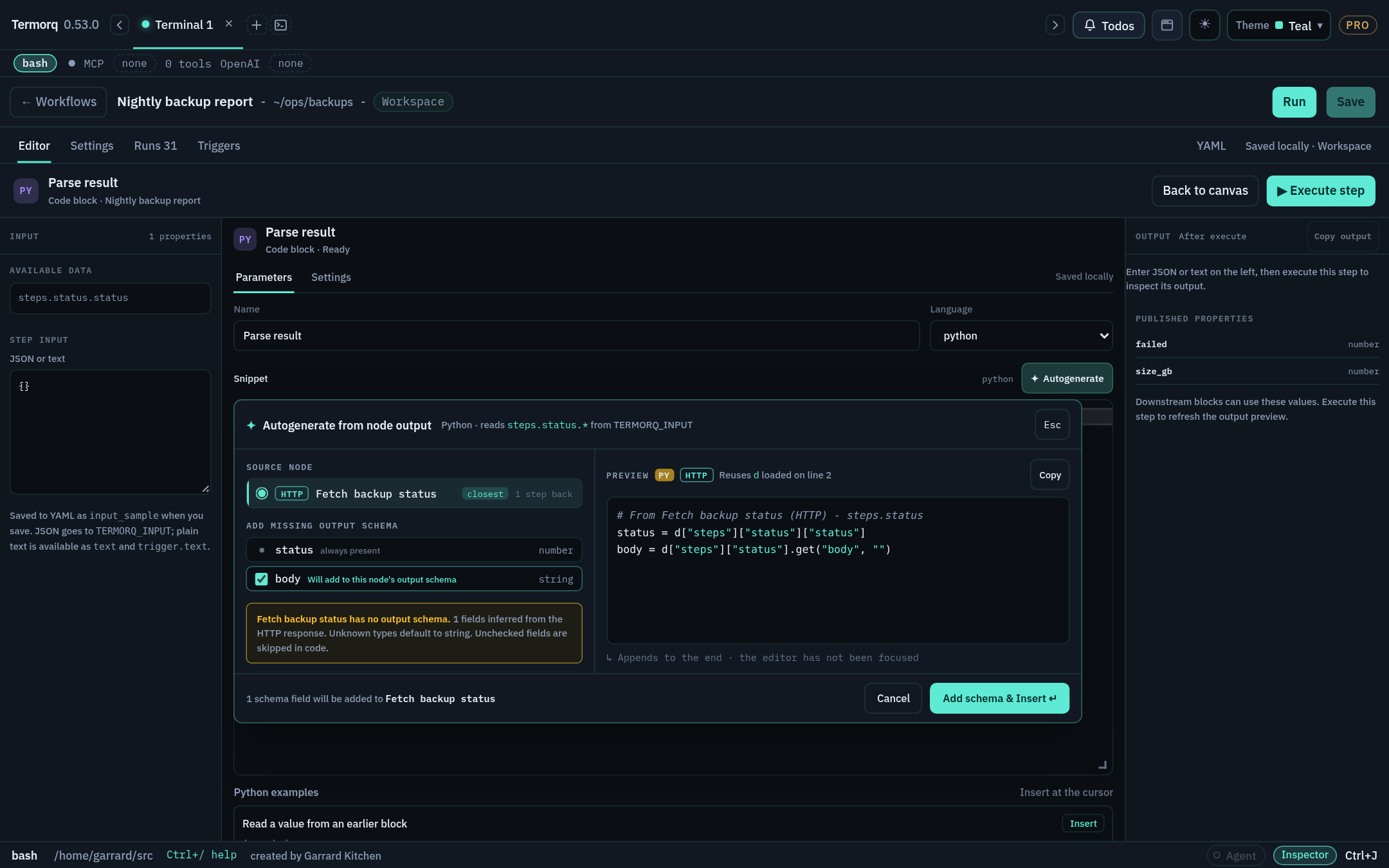
✦ Autogenerate
Goal
Let Termorq write the input-reading code and the uses list for you. Time: 10 minutes.
Steps
Open a Code block’s code editor and click where you want the code to go. The panel remembers the cursor position. If you never clicked in the editor, the code is appended at the end.
Choose ✦ Autogenerate on the Snippet row.
Choose the Source node. The node wired into this block is selected first. The list shows how many steps back each node is, and shows input if the workflow declares inputs.
Review the fields:
AI, and nodes with a complete schema: lists their declared outputs and says Schema complete — nothing to add.
HTTP: status (number) is always included. body and any top-level JSON keys from the last run are marked Will add to this node’s output schema.
MCP, and code without a schema: shows an inferred checklist (text, tool-result fields, or keys from the last run). Fields whose type can’t be inferred are shown in amber with a type picker, defaulting to string. Unchecked fields are left out.
Check the Preview, which is written in the block’s language. If code above the cursor already opens TERMORQ_INPUT, the preview reuses that variable. Bash previews use jq.
Choose Insert, or Add schema & Insert if fields will be added to the source node’s schema.
What Insert changes
The code goes on its own lines, tinted teal with an Inserted at cursor (or Appended) badge.
Each path, such as steps.fetch_users.status, is added to this block’s uses.
Any new fields are added to the source node’s output schema, so Available data and Save accept them.
Undo in the notice restores the snippet, uses, and the source schema together. The tint and the notice last 10 seconds by default. You can change this to between 1 and 60 seconds under Settings → Workflows → Code editor.
Tip
Run the workflow once before you use Autogenerate on an HTTP or MCP source. The panel infers fields from the last run, so it can offer real keys rather than guesses.
Check your run
In the HTTP mock workflow, add a Python block after ping and autogenerate from ping. The preview reads data["steps"]["ping"]["status"], and after Insert, uses contains steps.ping.status.
Exercise
Autogenerate the same block in Bash. What does the preview use to read values?
Details
jq, for example status=$(jq -r '.steps.ping.status' "$TERMORQ_INPUT"). The exact generated lines may differ slightly between releases.
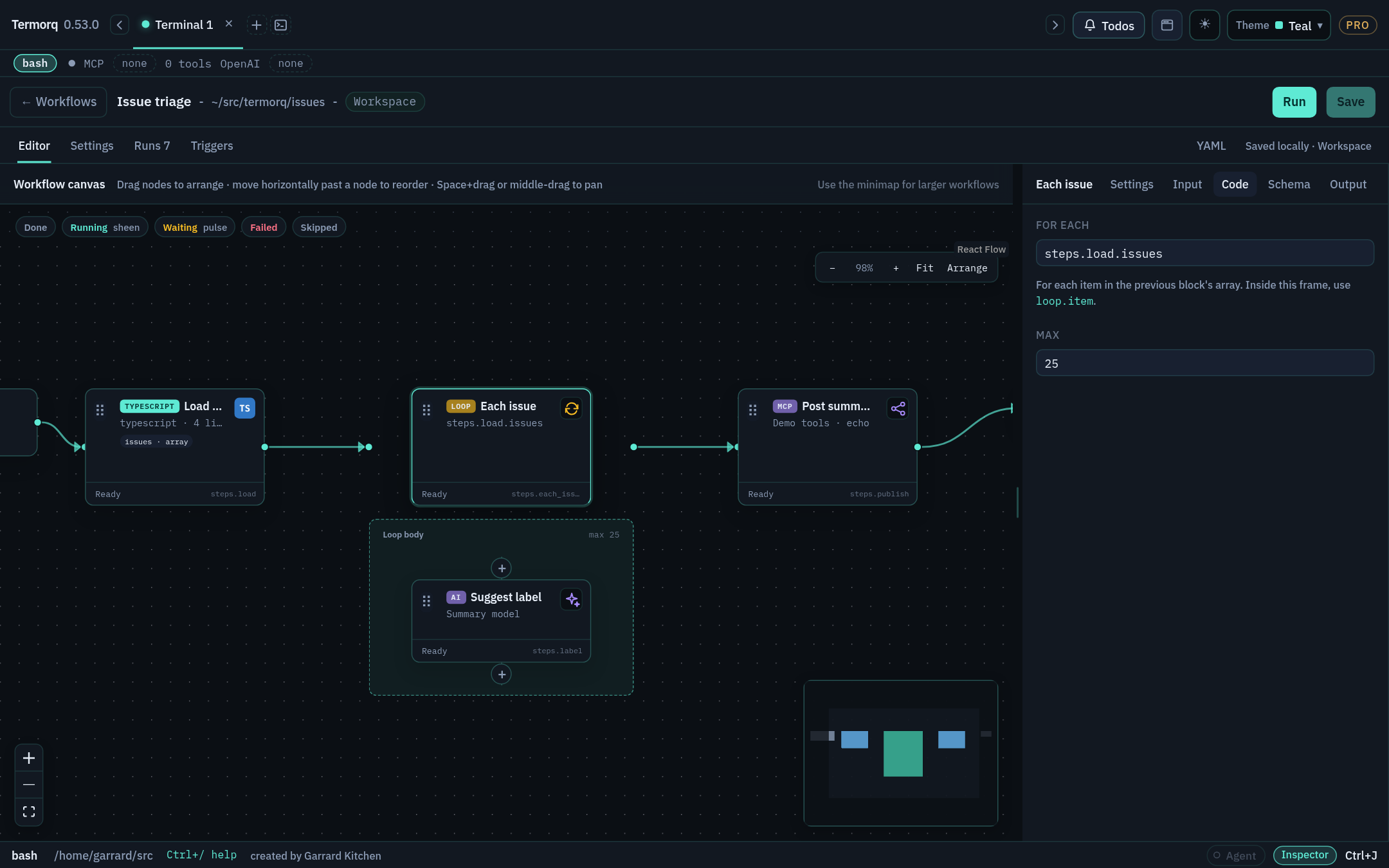
loop.item (the current element), loop.index (starts at 1), loop.count
Output
steps.<loop id>.results: one object per pass, keyed by child block ID, plus status and exit
max
Defaults to 20, and the ceiling is 100
Passes per run
100 in total, across all loops
Nesting
Up to 2 levels deep
Blocks per file
40, including loop bodies
In the editor, a loop is a frame. Add blocks with the + inside the frame, or drag existing blocks into it. While it runs, the frame shows progress such as 3 of 12. Keep the - id: of each child indented under body: in YAML.
Check your run
count_passes publishes count: 3 and first: "Hello Ada (1/3)". On Runs, greet appears three times, once per pass.
Exercise
Replace the inline names block with a workflow input: declare inputs: names: {type: array, items: {type: string}} and loop over inputs.names.
Countdown runs work once (done_at: 1), then leaves the loop because of then: break. Without break, it would stop at max: 5, because steps.start.more never changes.
Exercise
Set max: 101 on any loop, then save and run it. What happens? Then try a loop of 60 nested inside another loop of 2.
Details
Save accepts it (it’s a number), but the run fails with The loop maximum is 101, and the ceiling is 100. The nested 2 × 60 = 120 passes goes over the 100-passes-per-run limit, so the run fails with This run reached 100 passes. or The loop would run … passes, and this run allows 100.
Routing, skipping, and disabled nodes
Goal
Control exactly which blocks run without deleting any. Time: 10 minutes.
Ways a block doesn’t run
Cause
How it shows
YAML
Node execution is off
Still visible, marked Skipped
enabled: false
A decision chose another route
Skipped
—
A block before it failed
not run
—
You disconnected its only incoming wire
It’s disabled automatically and Skipped, even if file order would reach it
enabled: false
A then jumped past it
It doesn’t run
then: <id>
Steps
Open Decision demo from the previous lesson.
Select joined and turn Node execution off in Settings. Run the workflow: joined is shown as Skipped.
Turn it back on. Use the small × on the wire into joined to disconnect it. Because that was its only explicit incoming route, it’s disabled.
Drag from has_text’s output handle back onto joined to restore then: joined.
Note
If you disconnect a decision route, it falls through to the next block in YAML order. If a route already has a target and you choose a new node, the new node is inserted before that target.
Check your run
Runs → (latest) lists every block captured at the start. Disabled and unrouted blocks are visible with their skipped or not-run state.
Exercise
Write a YAML fragment where block a jumps straight to c, so that b never runs, without using a decision.
Tab completion, the save checker, termorq-cli validation, and where files live.
Subsections of 6 · YAML authoring
Anatomy of a workflow file
Goal
Recognise every root key and write a complete file from memory. Time: 15 minutes.
Annotated example
schema:1# required: 1, or 2 when you use `target`name:Refresh Acme users # required: unique, ignoring case and surrounding spacesid:refresh-acme-users # required: a letter, then letters, numbers, or hyphensdescription:| # optional Markdown, shown when the list row is expandedPulls users hourly and posts a summary.folder:~/src/acme-apis # project folder: TERMORQ_FOLDER and the code_file basetimeout_secs:600# per-block timeout (default 600)notices:# notice cards; each defaults to truestarted:trueprogress:truefinished:truefailed:truestopped:trueskipped:trueinputs:# named workflow inputs → inputs.<name>region:type:stringsecrets:# names resolved from the secret store → secrets.<name>- ACME_CLIENT_SECRETenv:# extra env vars for code blocks; values are templatesACME_REGION:"{{ inputs.region }}"triggers:# see Stage 8enabled:truemanual:trueselected:scheduleschedule:every:1hblocks:# required: up to 40, including loop bodies- id:list_userskind:httpmethod:GETurl:mock://users
Root keys
Key
Required
Purpose
schema
✓
1, or 2 when the file uses target
name
✓
Display name
id
✓
Stable ID, used in run folders, CLI commands, and HTTP hook URLs
blocks
✓
The steps
description
Markdown description (raw HTML and images aren’t rendered)
Where code runs (localHost, useTab, or a WSL mapping). Requires schema: 2
skills
Skill binding for AI blocks
canvas
positions: { <block id>: { x, y } }, written by the editor when you save
consent
Written by the app when you confirm a trigger. Don’t edit it by hand
Any other key fails Save with property ‘…’ is not recognised.
Check your run
Paste the annotated example into a new workflow and click Save. It saves (you can leave the comments in). Then delete id: and click Save again: you get ‘id’ is missing.
Exercise
Add a notices block that shows only failure cards.
- id:scriptkind:code_filepath:scripts/report.py# relative to `folder`args:--fast --limit 10# one string, split on whitespacelanguage:python # optional: inferred from the extension
- id:callkind:httpendpoint:Create message # a saved endpoint (real requests)method:POSTheaders:... # copied from the saved endpointbody:"{{ steps.prep.request_json }}"# or, offline:# url: mock://users
- id:toolkind:mcpserver:Demo toolstool:echoarguments:"{{ steps.prep.request_json }}"# must resolve to a JSON object
- id:summarisekind:aiconnection:Summary modelsystem:Return one JSON object with "summary".prompt:"Summarise: {{ steps.echo.message }}"max_tokens:128input_sample:'{"trigger":{"text":"hi"}}'
kind: git (Git file) appears in the editor, but the runner and the save check don’t accept it. See Git file.
Check your run
Put url: mock://x on a code block and click Save. You get property ‘url’ is not recognised., because each kind accepts only its own keys.
Exercise
Which kinds accept input_sample?
Details
code and ai. These are the two kinds with an isolated Execute step editor.
Templates and chips
Goal
Know exactly where {{ path }} templates are expanded. Time: 5 minutes.
Field
Template expanded?
HTTP url, body, headers
✓
MCP arguments (and server/tool)
✓
AI system, prompt
✓
Root env values
✓
Code body
✗ Never. Use uses and TERMORQ_INPUT
Code file source
✗
Decision when, loop for_each/while
These take a path or condition without braces, for example steps.x.total > 0
In the editor, templates appear as chips. In YAML, Tab completes {{ }} properties that are in reach.
The JSON-safety rule
Never place a template between JSON quotes:
# ✗ breaks when message contains " or a newlinebody:'{"message":"{{ steps.echo.message }}"}'# ✓ serialise the whole object in code, then insert it as one valuebody:"{{ steps.prepare.request_json }}"
Secrets in templates
{{ secrets.NAME }} works in templated fields once NAME is listed under secrets:. The value is masked in run records and redacted from logs.
Check your run
Put {{ steps.echo.message }} inside a Python body and run it. The literal braces are printed, and no value is inserted.
Exercise
You need an HTTP header Authorization: Bearer <token>, where the token is the secret ACME_TOKEN. Write the root key and the template.
Details
secrets:- ACME_TOKEN# in the HTTP block (or, preferably, in the saved endpoint's own auth settings):# Authorization: "Bearer {{ secrets.ACME_TOKEN }}"
It’s usually better to configure authentication on the saved endpoint, so the workflow never mentions the token.
Validate, complete, and keep files tidy
Goal
Author YAML quickly and catch every error before you run anything. Time: 10 minutes.
In the YAML tab
Tab completes keys, legal values (kinds, languages, and trigger presets), and {{ }} properties.
Esc closes the list and stays on the page. There’s no Monaco editor, so expect a lightweight text editor.
Save shows up to 20 reasons, sorted by line and column.
Outside the app
termorq-cli workflow runs the same checker and prints the same sentences. If a file has an error, it doesn’t run:
termorq-cli workflow list
termorq-cli workflow run refresh-acme-users
# Line 19: property 'foo' is not recognised.
Where files live
Source
Path
Yours
workflows/user/<id>.yml in the app data folder
Workspace
.ai-terminal/workflows/<id>.yml in an open team workspace (the app never commits or pushes it)
Included
Shipped with the app and read-only. Saving one writes your copy, which overrides the included version
Warning
Workspace files are shared with your team. A raw token in one of them is refused by the team-workspace scrubber. Use secrets: names instead.
Check your run
After saving, termorq-cli workflow list shows your workflow with source yours.
Exercise
Write a deliberately broken file containing: an invalid workflow ID, a repeated key, and a block ID with a hyphen. Predict all three messages, then check your predictions with Save.
Details
'id' must be a letter, then letters, numbers, or hyphens.
property '<key>' is repeated.
A block ID error for the hyphenated ID (block IDs allow letters, numbers, and underscores only).
Stage 7 · Runs and operations
Once a workflow works, you need to understand what it did, and manage it over time. This stage covers how.
Symptom → cause → fix for the errors you will actually hit.
Subsections of 7 · Runs & ops
Inside a run folder
Goal
Find and read everything a run left behind. Time: 10 minutes.
workflows/runs/<workflow id>/<run id>/
├── run.json      # the run record: blocks, inputs passed via uses, outputs, status
├── blocks/       # per-block logs (secrets masked)
└── files/        # cwd for code blocks; artifacts written via TERMORQ_OUTPUT
Settings → Workflows shows where this folder is on your computer.
From the Runs tab
Open a workflow and choose Runs (or choose Runs on its row in the list).
Select a run. Every block captured when the run started is listed, with its values from uses, resolved requests, outputs, and text or error.
Copy input and Copy output copy those values for a block. Secrets stay masked.
Loop body blocks appear once per pass.
Open folder opens the run directory, and Delete run removes it, including files/. Delete asks first, and focus starts on Cancel.
Drag the divider to give the history list or the run details more room.
Retention
Termorq keeps the newest 50 runs per workflow (configurable in Settings → Workflows). Each new run deletes the oldest folder beyond the limit. The disk use shown in the workflow list counts the definition plus all of its run files.
Warning
files/ is deleted along with the run. Copy any artifact you want to keep somewhere else, for example by adding a final Code block that copies it to $TERMORQ_FOLDER/reports/.
Check your run
Run Output rules from Stage 2 that writes report.csv, then click Open folder: the file is in files/, and run.json lists the emit block’s outputs.
Exercise
Add a final block that copies report.csv into $TERMORQ_FOLDER/reports/<run id>.csv.
Details
set -euo pipefail
mkdir -p "$TERMORQ_FOLDER/reports"cp "$TERMORQ_OUTPUT/report.csv""$TERMORQ_FOLDER/reports/$TERMORQ_RUN.csv"jq -nc --arg p "reports/$TERMORQ_RUN.csv"'{ok:true, saved:$p}'
Pause, resume, edit the rest, stop
Goal
Stop a run going wrong, or fix the remaining blocks mid-run. Time: 10 minutes.
Action
Effect
Pause run
Lets the active block finish, then holds the next one
Resume
Continues from the held block
Edit rest → Apply
Changes the blocks that haven’t started in this run only. It doesn’t write the workflow file
Edit workflow → Save
Changes the file, which affects the next run
Stop
Cancels the active process tree or request immediately, without asking
Cancel run
Available during credential preflight, before any block starts
Rules
A workflow has one active run at a time. A second start is recorded as Skipped · already running. Different workflows can run at the same time.
If Termorq quits while a run is in progress, that run is shown as stopped and its partial folder stays.
termorq-cli workflow run blocks the CLI process. Quitting the app stops it.
Check your run
Add sleep 20 to the first block of a three-block workflow. Run it, Pause it, use Edit rest to change block 3’s output, Apply, then Resume. Block 3 uses the edited version, and the saved file is unchanged.
Exercise
Start the same workflow twice quickly, once with Run and once with its HTTP trigger. What does Runs show?
Details
The second start is recorded as Skipped · already running.
Notices and Workflow settings
Goal
Tune how runs report their progress, and the defaults for new workflows. Time: 5 minutes.
Notice cards
One card per run, shown above the footer, with at most two in-progress cards. These are not OS notifications.
The card appears when the run starts, updates as each block starts, and changes when the run fails or finishes.
A success card disappears after 6 seconds. A failure card stays until you dismiss it. Open goes to that run.
Progress isn’t shown while that run’s page is open.
Control which cards appear for each workflow with the root notices: key (see Stage 6).
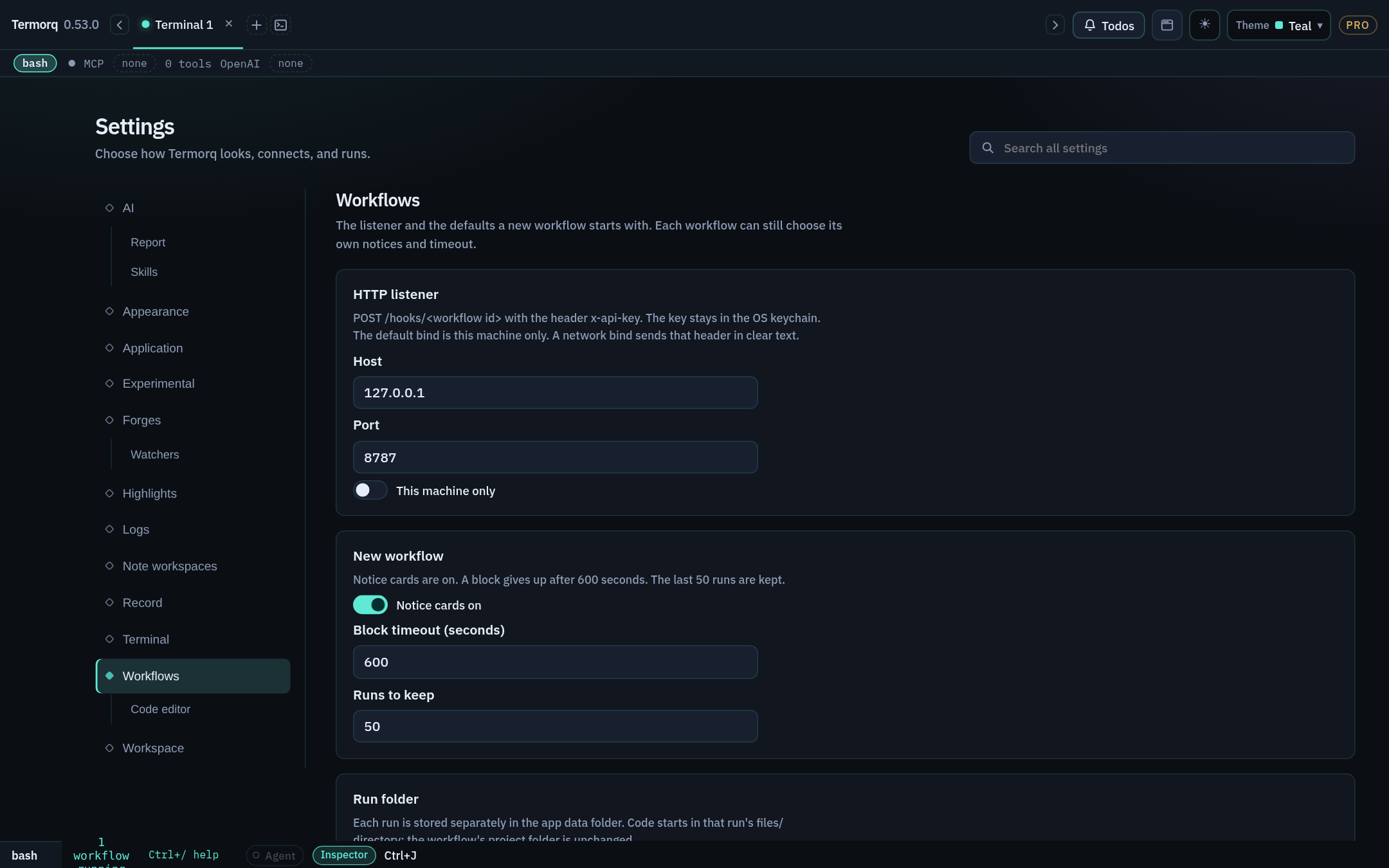
Settings → Workflows
Setting
Default
Listener host
127.0.0.1
Listener port
8787
Network bind
Off (this machine only)
Notice cards
On
Block timeout
600 seconds
Runs to keep
50
Code editor › Insert highlight clears after
10 seconds
Code editor › Undo notice stays open for
10 seconds
Search Settings for workflow, listener, or undo notice to find these.
Check your run
Set Runs to keep to 5, run a workflow six times, and check that Runs lists only 5.
Exercise
Which setting would you change so that Autogenerate’s teal highlight stays for 30 seconds?
Details
Settings → Workflows → Code editor → Insert highlight clears after: 30 (the range is 1–60).
termorq-cli workflow
Goal
Run a workflow without opening its page. Time: 5 minutes.
Pro feature
termorq-cli workflow is Pro. A Free binary leaves it out of --help and refuses the command.
termorq-cli workflow list
termorq-cli workflow list --workspace ~/src/acme-apis
termorq-cli workflow run refresh-acme-users
termorq-cli workflow runs refresh-acme-users
Command
Prints
workflow list
Each workflow’s name, ID, and source (included, yours, or workspace)
workflow run <id>
Starts the run and waits in this process
workflow runs <id>
The run directories under workflows/runs/<id>/
--workspace takes an absolute path or one starting with ~.
A file with a problem prints the same sentence as Save, and the run doesn’t start.
Schedules and the HTTP listener belong to the desktop app. The CLI starts only the run you name.
Check your run
termorq-cli workflow run hello-workflow finishes, and workflow runs hello-workflow lists the new directory.
Exercise
Write a one-line shell command that runs hello-workflow and then prints its newest run directory.
Bot token, chat allowlist, commands, and trigger.args.
Subsections of 8 · Triggers
Choosing and arming a trigger
Goal
Understand how a trigger becomes active and safe. Time: 10 minutes.
One active automatic trigger
A workflow can store settings for every trigger type, but only the selected one starts runs automatically. Manual Run is always available.
triggers:enabled:true# false = all automatic triggers pausedmanual:trueselected:schedule # manual | schedule | startup | after | file | http | telegramschedule:every:1hhttp:true# kept for later, but inactive while schedule is selected
Consent
The first time you enable an automatic trigger, the page lists every HTTP call, MCP tool, model connection, and secret name that a run can use. Confirm arms the trigger, and Cancel leaves it off. If you later add a new call or secret name, Termorq asks again. A manual Run never asks.
Pausing
Pause triggers stops automatic starts. Run still works. Copies and imports always start with their triggers paused.
Trigger
selected
Starts when
Manual
manual
You press Run, use @flow, or run termorq-cli workflow run
Schedule
schedule
A preset interval or a 5-field cron expression matches
At startup
startup
The app process opens (once)
After workflow
after
Another workflow finishes with success, failed, or any
File
file
Something changes inside the workflow folder (debounced by 1.5 seconds)
HTTP
http
POST /hooks/<id> with a valid x-api-key
Telegram
telegram
A message arrives from an allowlisted chat
Check your run
Enable a schedule on a copy of Probe mock. The consent list names its mock:// call and the ACME_CLIENT_SECRET secret. Click Confirm, and the list row shows Schedule.
Exercise
Your workflow has both schedule and http configured. How do you make HTTP the active trigger without losing the schedule settings?
Details
Set selected: http, or choose HTTP request on Triggers. The schedule settings stay saved but inactive.
Five fields are supported, using *, lists (1,15), ranges (1-5), and steps (*/15). Both 0 and 7 mean Sunday.
Runs are at least one minute apart.
Important
Cron expressions are matched against UTC. In London during British Summer Time (UTC+1), 0 7 * * 1-5 fires at 08:00 local time. Adjust the hour for your time zone.
Passing inputs on a schedule
schedule.input provides the run’s inputs. A JSON object becomes inputs.*. Any other value becomes inputs.input.
Split long pipelines into smaller workflows chained with after. Each part gets its own run history and can be rerun separately.
Check your run
Make refresh-acme-users fail (for example, by disabling its model connection) and run it. Notify on failure starts automatically.
Exercise
Change the chain so that it runs after every finish, whether the first workflow succeeded or failed.
Details
outcome: any
File change
Goal
Run a workflow whenever a particular file in your project changes. Time: 10 minutes.
schema:1name:Onconfig changeid:on-config-changefolder:~/src/acme-apistriggers:enabled:trueselected:filefile:path:config/app.json # relative to `folder`; must be inside itdebounce_ms:1500blocks:- id:changedkind:codelanguage:pythonuses:[trigger.path, trigger.received_at]body:| import json, os
t = json.load(open(os.environ["TERMORQ_INPUT"], encoding="utf-8"))["trigger"]
print(json.dumps({"line": f"{t['path']} changed at {t['received_at']}"}))outputs:type:objectproperties:line:{type:string }
Rules
Termorq watches inside the workflow folder, and refuses a path outside it.
Changes are debounced (by 1.5 seconds by default), so a burst of saves starts one run.
path matches the changed file’s path relative to the folder (or a trailing part of it). If you leave path empty, any change in the folder triggers a run.
The trigger provides trigger.path and trigger.received_at.
Warning
Don’t write files into the watched folder from the same workflow, or each run will trigger the next one. Write artifacts to $TERMORQ_OUTPUT instead.
Check your run
Run touch ~/src/acme-apis/config/app.json. One run starts, and line names the file.
Exercise
Make the block validate that the changed file is still valid JSON, and publish valid: boolean.
Start a workflow with curl, and read the request body in a block. Time: 15 minutes.
Steps
Use the Input and output example from Stage 2 (the echo block with uses: [trigger.text]).
On Triggers, choose HTTP request, Save, and confirm.
Click Copy key. The key is stored in the OS keychain (account workflow-hook-<workflow id>). It never appears in the YAML, the run record, or the picker.
Call the hook:
exportTERMORQ_HOOK_KEY='<paste the key>'curl -sS -i \
-H "content-type: application/json"\
-H "x-api-key: $TERMORQ_HOOK_KEY"\
-d '{"text":"Hello from curl"}'\
http://127.0.0.1:8787/hooks/input-output-example
triggers:enabled:trueselected:httphttp:true
How the body maps
The JSON body becomes inputs.<name>. Supported trigger fields, such as text, also become trigger.<name>. So {"text":"Hi"} provides both inputs.text and trigger.text. Declare inputs.text if you want to read it that way.
Responses
Status
Meaning
202 + {"run_id":"…"}
Accepted. The run continues in the background
401 (empty body)
The key is missing or wrong. A key in the query string is ignored
400
Malformed JSON, or the body isn’t a JSON object
413
The body is over 256 KiB
415
The content type isn’t JSON
429
More than 30 requests a minute from one client
The listener
One listener serves every armed workflow. It defaults to 127.0.0.1:8787 (This machine only), and the socket is open only while at least one workflow has HTTP armed. All interfaces exposes the port on your network. There’s no TLS, so the key travels in clear text.
Warning
Never put the hook key in the workflow file or in a repository. Keep it in your shell’s environment or a secret manager.
Check your run
curl prints HTTP/1.1 202 and a run_id. On Runs, the new run’s echo block shows message: "Hello from curl".
Exercise
Send {"names":["Ada","Lin"]} to a workflow that loops over inputs.names. What do you need to declare?
Details
inputs:names:type:arrayitems:{type:string }
Then use for_each: inputs.names on the loop.
Telegram
Goal
Start a workflow by sending /refresh hello from your phone. Time: 15 minutes. Needs: a Telegram bot token from @BotFather, and your chat ID.
Steps
On Triggers, choose Telegram. Enter the bot token and click Save bot settings. Termorq checks the token with getMe and stores it in the keychain (account telegram-token-<id>).
Add your chat ID to the allowlist, and optionally a command such as refresh (with or without /).
Single YAML, .aitwf bundles with optional encryption, imports as paused copies, and workspace files.
Subsections of 9 · Capture & share
Capture a session as a workflow
Goal
Turn three things you did in the terminal into a runnable workflow draft. Time: 15 minutes.
Pro feature
Session capture is Pro.
Steps
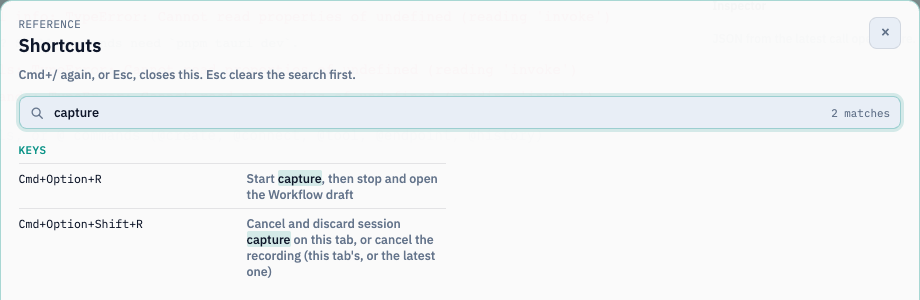
Start capture with @capture or the Capture session command. You can also press Cmd+Option+R on macOS, or Ctrl+Alt+R on Windows/Linux (Ctrl+Shift+R where AltGr uses Ctrl+Alt). The Pro tray menu has Capture session to Workflow too.
Do your work in this tab: run a shell command, call a saved endpoint (@endpoint Find user --id 42), call an MCP tool, and ask the AI something.
A pulsing Capturing pill in the footer counts your actions. Click it, then choose Finish and review.
An unsaved draft opens with its triggers paused. Review it, rename it, and Save.
What becomes what
Captured
Becomes
A POSIX, Git Bash, or WSL command
A Bash Code block ending with {"ok":true} and declaring ok: boolean
A PowerShell command
A PowerShell Code block
A Command Prompt command
A PowerShell block that calls cmd.exe
A saved endpoint call
An HTTP block. The request values become named workflow inputs, which you enter when you press Run (42 isn’t saved as a default)
An MCP tool call
An MCP block
An AI prompt
An AI block using the tab’s model. The prompt becomes a required input. Earlier chat context isn’t captured
What’s left out (and why)
Interactive commands, and commands that change or read persistent shell state (cd, export, reading $VAR), stay in the review list with a prerequisite note. The draft doesn’t pretend that shell state was saved.
Secret-looking values are scrubbed before they enter the in-memory buffer. Those steps are listed for review: add a saved secret, or enter the value again in the editor.
Capture is per tab and memory-only, and holds up to 200 actions. If nothing was captured, Finish capture closes the session without creating an empty workflow.
Ctrl+Alt+Shift+R (macOS: Cmd+Option+Shift+R) discards the capture. @record is a different feature: it records scrollback as an asciinema recording.
Check your run
The draft has one block per captured, representable action. Shell blocks end with {"ok":true}, and pressing Run asks for any captured request inputs.
Exercise
Capture cd /tmp && ls. Why isn’t it in the runnable draft, and how would you rewrite it as a block?
Details
cd changes persistent shell state, so it’s left out. Rewrite it as one Bash block, ls /tmp >&2; echo '{"ok":true}', or use an absolute path.
Share a workflow with a colleague safely. Time: 10 minutes.
Export
Export on a row saves a single workflow as readable .yml.
To export several, tick the rows, or use Select shown to tick everything matching the current search and filters. Then choose Export selected to save a versioned .aitwf bundle of up to 50 workflows.
Optionally turn on Encrypt the export with a password. Encrypted exports use Argon2id and AES-256-GCM. The password can’t be recovered.
Exports contain definitions only: no run history and no local credentials.
Import
Choose Import workflows and pick .yml/.yaml files or an .aitwf bundle (Termorq asks for the password if it’s encrypted).
Termorq validates every workflow before it saves any of them.
Each one becomes a new copy with a new ID, saved under Yours, with its automatic triggers paused.
Check the connections and secret names on this computer before you arm a trigger.
Team workspace
When a team workspace is open, its workflows live in .ai-terminal/workflows/<id>.yml, and the list’s Workspace chip shows them. Commit them with git yourself; Termorq never commits or pushes them. Raw tokens are refused, so refer to credentials by secrets: names.
Check your run
Export two workflows as an encrypted bundle, then import it. Two new copies appear under Yours, with new IDs and paused triggers.
Exercise
A colleague’s imported workflow fails at its HTTP block on your computer. Before anything else, what should you check?
Details
Check that you have a saved endpoint with the same name as the block’s endpoint: (and any secret names it uses). Exports don’t include connections or credentials.
Use any saved tool that accepts {"message": "..."}, and rename it in the YAML
A saved model connection Summary model
The AI block
Save rejects an unknown connection with connection ‘…’ is not saved.
Tip
No MCP server or model to hand? You can still finish the capstone. Turn Node execution off for post and/or ai_warn (enabled: false). They show as Skipped, and every other block still runs.
The Code file
Save this as ~/src/release-digest/scripts/stamp.ts (download):
// Termorq Learn capstone: Code file (TypeScript).
// Place at <workflow folder>/scripts/stamp.ts. Uses erasable syntax only (Node 22.6+ native).
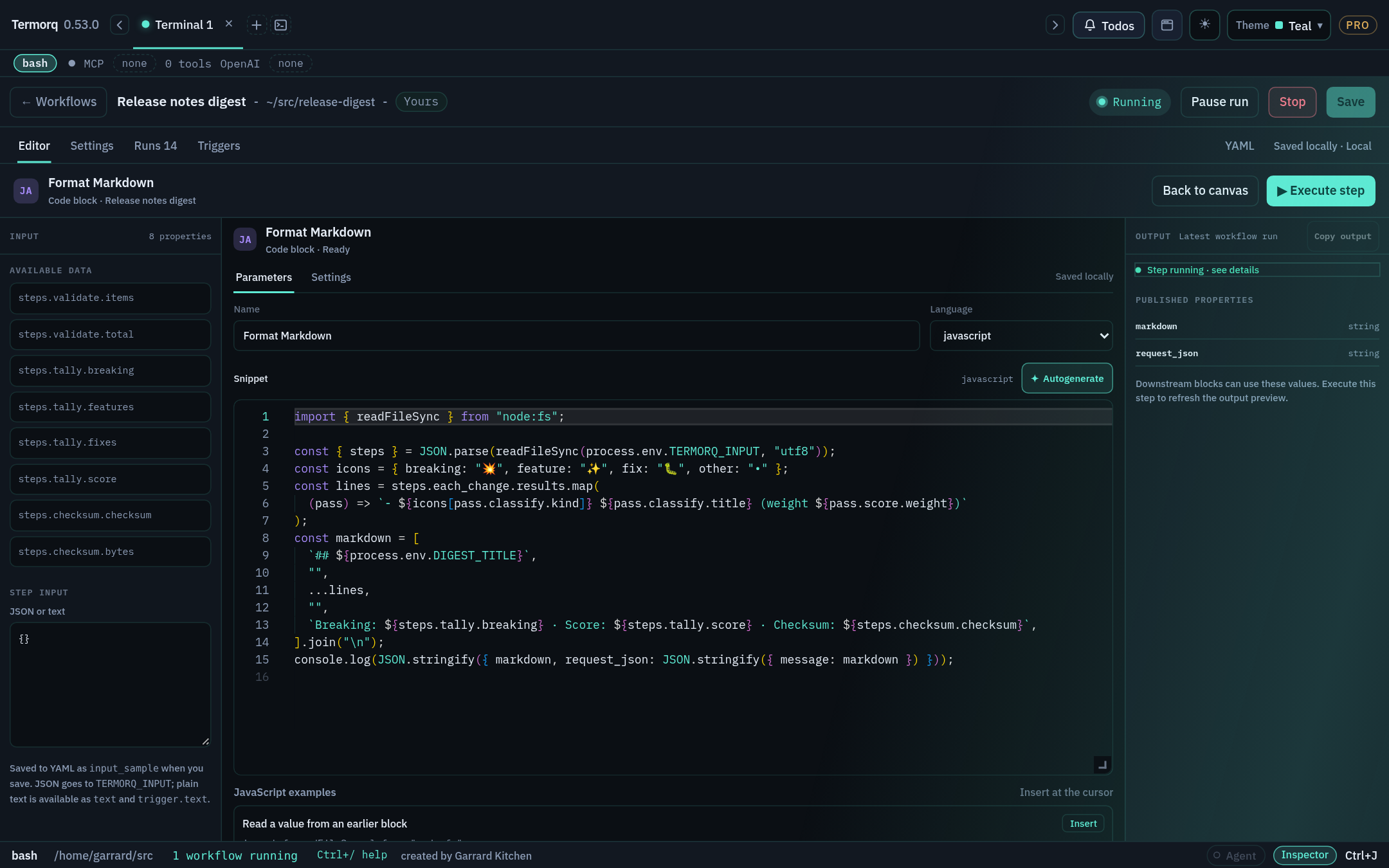
import{readFileSync,writeFileSync}from"node:fs";import{join}from"node:path";typeInput={steps:{format:{markdown: string}}};constinputPath=process.env.TERMORQ_INPUT;constoutputDir=process.env.TERMORQ_OUTPUT;if(!inputPath||!outputDir)thrownewError("TERMORQ_INPUT and TERMORQ_OUTPUT are required");constdata=JSON.parse(readFileSync(inputPath,"utf8"))asInput;constmarkdown=data.steps.format.markdown;if(typeofmarkdown!=="string")thrownewError("steps.format.markdown must be a string");construn=process.env.TERMORQ_RUN??"unknown";conststamped=`${markdown}\n\n_Run ${run} · ${newDate().toISOString()}_`;constfile="digest.md";writeFileSync(join(outputDir,file),stamped,"utf8");console.log(JSON.stringify({stamped,file}));
Check your run
ls ~/src/release-digest/scripts shows stamp.ts, and every runtime check prints a version.
Exercise
Before you look at the next lesson, list which block in the diagram will use which kind and which language. You should have seven kinds and seven languages.
Change server:, tool:, and connection: to match your saved connections, or disable those blocks.
Click Save. If the panel says Not saved, fix each line it reports. Use Stage 6 for help.
Click Arrange, then Fit, to lay out the canvas.
schema:1name:Release notes digestid:release-digestdescription:| Termorq Learn capstone. Every runnable block type and all seven languages,
started by an HTTP request with `{"changes": ["feat: ...", "fix: ..."]}`.folder:~/src/release-digesttimeout_secs:300inputs:changes:type:arrayitems:type:stringenv:DIGEST_TITLE:Release notes digesttriggers:enabled:truemanual:trueselected:httphttp:trueblocks:# 1 · Python: validate the request body- id:validatename:Validate inputkind:codelanguage:pythonuses:[inputs.changes]input_sample:|- {"inputs":{"changes":["feat: dark mode","fix: crash on save","feat!: drop v1 API"]}}body:| import json, os, sys
with open(os.environ["TERMORQ_INPUT"], encoding="utf-8") as f:
data = json.load(f)
changes = data["inputs"]["changes"]
if not isinstance(changes, list) or not changes:
raise ValueError("inputs.changes must be a non-empty list")
if not all(isinstance(c, str) and c.strip() for c in changes):
raise ValueError("every change must be a non-empty string")
items = [c.strip() for c in changes][:50]
print(f"validated {len(items)} changes", file=sys.stderr)
print(json.dumps({"items": items, "total": len(items)}))outputs:type:objectproperties:items:type:arrayitems:type:stringtotal:type:number# 2 · Loop: classify (Bash) and score (PowerShell) every change- id:each_changename:Each changekind:loopfor_each:steps.validate.itemsmax:50body:- id:classifyname:Classifykind:codelanguage:bashuses:[loop.item]body:| set -euo pipefail
jq -c '
.loop.item as $t
| {title: $t,
kind: (if ($t | test("^(breaking|[a-z]+!:)"; "i")) then "breaking"
elif ($t | test("^feat"; "i")) then "feature"
elif ($t | test("^fix"; "i")) then "fix"
else "other" end)}' "$TERMORQ_INPUT"outputs:type:objectproperties:title:type:stringkind:type:stringenum:[breaking, feature, fix, other]- id:scorename:Scorekind:codelanguage:powershelluses:[steps.classify.kind, loop.index]body:| $ErrorActionPreference = 'Stop'
$d = Get-Content -Raw -LiteralPath $env:TERMORQ_INPUT | ConvertFrom-Json
$weights = @{ breaking = 5; feature = 3; fix = 2; other = 1 }
$kind = [string]$d.steps.classify.kind
@{ weight = $weights[$kind]; position = [int]$d.loop.index } | ConvertTo-Json -Compressoutputs:type:objectproperties:weight:type:numberposition:type:number# 3 · C#: tally the loop results- id:tallyname:Tallykind:codelanguage:csharpuses:[steps.each_change.results]body:| using System;
using System.IO;
using System.Text.Json;
using System.Text.Json.Nodes;
var path = Environment.GetEnvironmentVariable("TERMORQ_INPUT")
?? throw new InvalidOperationException("TERMORQ_INPUT is missing");
using var doc = JsonDocument.Parse(File.ReadAllText(path));
var results = doc.RootElement.GetProperty("steps").GetProperty("each_change").GetProperty("results");
int breaking = 0, features = 0, fixes = 0;
double score = 0;
foreach (var pass in results.EnumerateArray())
{
var kind = pass.GetProperty("classify").GetProperty("kind").GetString();
if (kind == "breaking") breaking++;
else if (kind == "feature") features++;
else if (kind == "fix") fixes++;
score += pass.GetProperty("score").GetProperty("weight").GetDouble();
}
Console.WriteLine(new JsonObject
{
["breaking"] = breaking,
["features"] = features,
["fixes"] = fixes,
["score"] = score,
}.ToJsonString());outputs:type:objectproperties:breaking:type:numberfeatures:type:numberfixes:type:numberscore:type:number# 4 · Rust: checksum of the validated items (std only, no Cargo)- id:checksumname:Checksumkind:codelanguage:rustuses:[steps.validate.items]body:| use std::{env, error::Error, fs};
fn main() -> Result<(), Box<dyn Error>> {
let bytes = fs::read(env::var("TERMORQ_INPUT")?)?;
// FNV-1a, 64-bit
let mut hash: u64 = 0xcbf29ce484222325;
for b in &bytes {
hash ^= *b as u64;
hash = hash.wrapping_mul(0x100000001b3);
}
println!("{{\"checksum\":\"{:016x}\",\"bytes\":{}}}", hash, bytes.len());
Ok(())
}outputs:type:objectproperties:checksum:type:stringbytes:type:number# 5 · JavaScript: format Markdown and a JSON-safe request body- id:formatname:Format Markdownkind:codelanguage:javascriptuses:- steps.each_change.results- steps.tally.breaking- steps.tally.score- steps.checksum.checksumbody:| import { readFileSync } from "node:fs";
const { steps } = JSON.parse(readFileSync(process.env.TERMORQ_INPUT, "utf8"));
const icons = { breaking: "💥", feature: "✨", fix: "🐛", other: "•" };
const lines = steps.each_change.results.map(
(pass) => `- ${icons[pass.classify.kind]} ${pass.classify.title} (weight ${pass.score.weight})`
);
const markdown = [
`## ${process.env.DIGEST_TITLE}`,
"",
...lines,
"",
`Breaking: ${steps.tally.breaking} · Score: ${steps.tally.score} · Checksum: ${steps.checksum.checksum}`,
].join("\n");
console.log(JSON.stringify({ markdown, request_json: JSON.stringify({ message: markdown }) }));outputs:type:objectproperties:markdown:type:stringrequest_json:type:string# 6 · Code file (TypeScript): stamp the digest and save it as an artifact- id:stampname:Stamp digestkind:code_filepath:scripts/stamp.tsuses:[steps.format.markdown]outputs:type:objectproperties:stamped:type:stringfile:type:string# 7 · HTTP (offline mock): "publish" the digest- id:publishname:Publishkind:httpmethod:POSTurl:mock://digestbody:"{{ steps.format.request_json }}"outputs:type:objectproperties:path:type:stringmock:type:boolean# 8 · MCP: post the digest through a saved tool- id:postname:Post via MCPkind:mcpserver:Demo toolstool:echoarguments:"{{ steps.format.request_json }}"outputs:type:objectproperties:content:type:array# 9 · Decision: warn only when something is breaking- id:gatename:Breaking?kind:decisionbranches:- when:steps.tally.breaking > 0goto:ai_warn- else:truegoto:quiet# 10 · AI: write an upgrade warning- id:ai_warnname:Upgrade warningkind:aiconnection:Summary modelsystem:'Return a single JSON object with a string property named "summary".'prompt:| These release notes contain breaking changes. Write a two-sentence upgrade warning.
{{ steps.stamp.stamped }}max_tokens:200outputs:type:objectproperties:summary:type:stringthen:done# 11 · Python: the quiet route- id:quietname:All clearkind:codelanguage:pythonuses:[steps.validate.total]body:| import json, os
with open(os.environ["TERMORQ_INPUT"], encoding="utf-8") as f:
total = json.load(f)["steps"]["validate"]["total"]
print(json.dumps({"summary": f"No breaking changes in {total} items."}))outputs:type:objectproperties:summary:type:stringthen:done# 12 · Join- id:donename:Donekind:httpmethod:GETurl:mock://done
Block by block
#
Block
Kind · language
Concept practised
1
validate
code · Python
inputs.* in uses, validation, stderr diagnostics, input_sample
2
each_change
loop
for_each, max, nested body
2a
classify
code · Bash
loop.item, safe jq JSON, enum output
2b
score
code · PowerShell
Reading a sibling’s output in the same pass, plus loop.index
3
tally
code · C#
Iterating steps.<loop>.results keyed by child ID
4
checksum
code · Rust
Std-only byte processing, no Cargo
5
format
code · JavaScript
ES module, env (DIGEST_TITLE), producing a serialisedrequest_json
6
stamp
code_file · TypeScript
Language inferred from .ts, artifact in TERMORQ_OUTPUT, TERMORQ_RUN
7
publish
http (mock://)
Templated body from a JSON-safe string
8
post
mcp
arguments resolving to a JSON object
9
gate
decision
First-true branch, else fallback
10
ai_warn
ai
Templated prompt, a declared summary, then: done
11
quiet
code · Python
The alternative route, rejoining with then: done
12
done
http (mock://)
The join point, which doesn’t require outputs from either branch
Important
Notice that done reads nothing from ai_warn or quiet. Only one of those two runs, so a join block that needed both would fail.
Test before the full run
validate: open the code editor and choose Execute step. The saved input_sample supplies three changes.
ai_warn: its prompt reads steps.stamp.stamped, which only exists during a full run. To try the wording in Open AI editor, temporarily replace that chip with {{ trigger.text }}, enter some sample notes as plain text in Step input, and choose Execute step. Put the chip back before you save.
Check your run
Save succeeds, the canvas shows 12 top-level blocks, with classify and score inside the loop frame (14 blocks in total, within the 40-block limit), and validate → Execute step publishes total: 3.
Exercise
Add a docs category to classify (titles starting with docs) with a weight of 1 in score. Which three places do you need to change?
Details
In classify’s jq, add elif ($t | test("^docs"; "i")) then "docs".
Add docs to classify’s output enum.
Add docs = 1 to $weights in score. (Optionally also add a docs icon in format. Without one, the line shows undefined.)
Trigger it and check the run
Goal
Start the capstone from outside Termorq and confirm that every block did its job. Time: 15 minutes.
Steps
On Triggers, confirm that HTTP request is selected, Save, and Confirm the consent list. It names the mock:// calls, the MCP tool, and the model.
Click Copy key.
Send a release with a breaking change:
exportTERMORQ_HOOK_KEY='<paste the key>'curl -sS -i \
-H "content-type: application/json"\
-H "x-api-key: $TERMORQ_HOOK_KEY"\
-d '{"changes":["feat: dark mode","fix: crash on save","feat!: drop v1 API","docs: typo"]}'\
http://127.0.0.1:8787/hooks/release-digest
Then send one without a breaking change:
curl -sS -i -H "content-type: application/json" -H "x-api-key: $TERMORQ_HOOK_KEY"\
-d '{"changes":["feat: export to CSV","fix: typo in header"]}'\
http://127.0.0.1:8787/hooks/release-digest
Check your run
Check your run
For the first request, Runs → (latest) shows:
validate: total: 4
classify and score, four times each (once per pass), with kinds feature, fix, breaking, and other
validate fails: inputs.changes must be a non-empty list
{"changes":"oops"}
validate fails
No x-api-key header
401, and no run starts
-H "content-type: text/plain"
415
Exercise
Graduation task: add a Schedule configuration (cron: "0 8 * * 1", with input: '{"changes":["chore: weekly check"]}') without making it the active trigger. Then explain how you would switch to it.