Stage 8 · Triggers

Pro feature

Triggers and their runs are part of Workflows (Pro). Triggers fire only while Termorq is open, and a missed schedule isn’t replayed later.
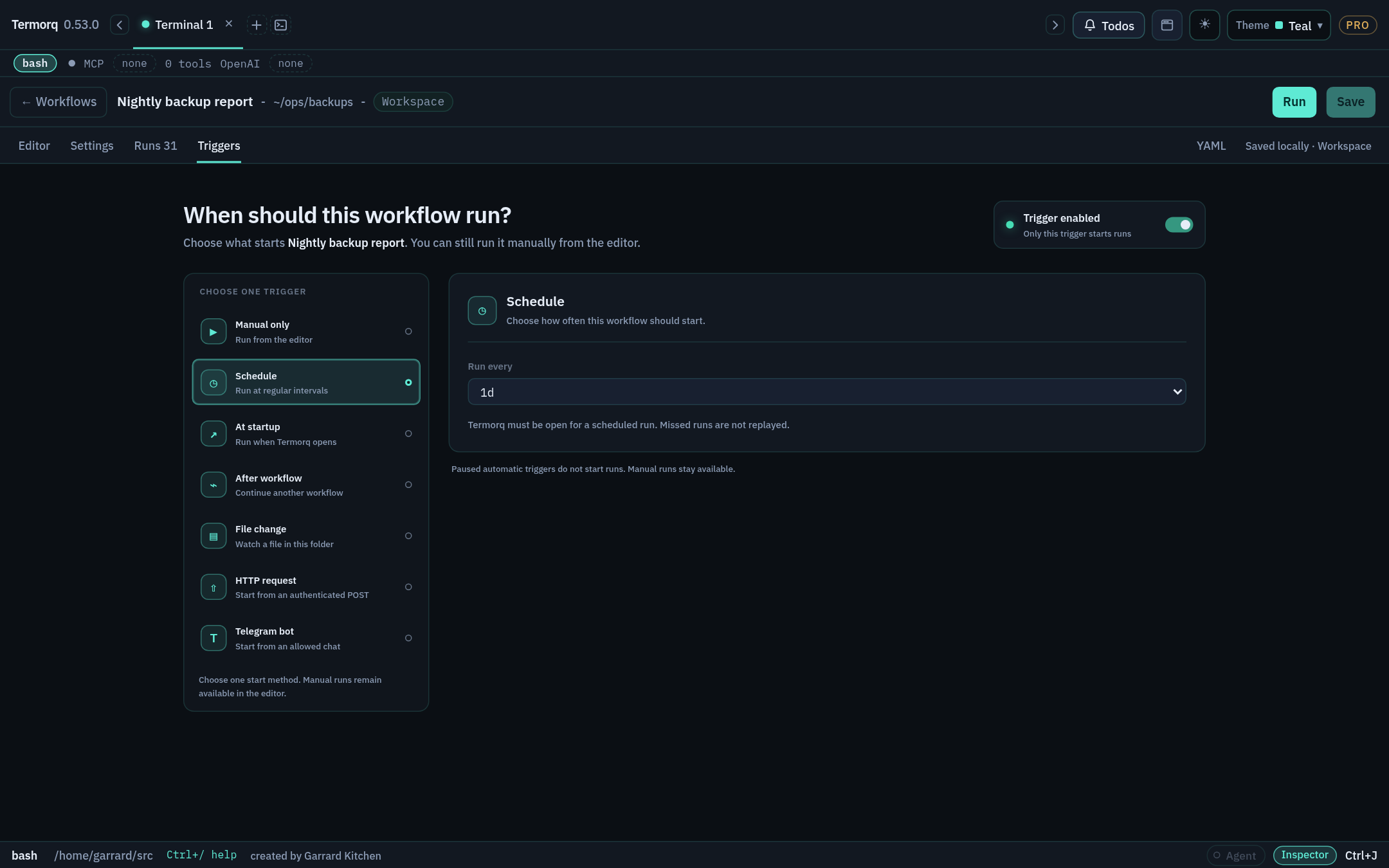
Single selected Schedule trigger in the Triggers page Single selected Schedule trigger in the Triggers page

  • Choosing and arming a trigger

    One active trigger, the consent prompt, Pause triggers, and the triggers YAML block.

  • Schedule

    Preset intervals, 5-field cron (evaluated in UTC), and scheduled inputs.

  • At startup and After another workflow

    Run once when Termorq opens, or chain workflows by outcome.

  • File change

    Watch the workflow folder, filter by path, and read trigger.path.

  • HTTP request

    The local listener, x-api-key, status codes, and mapping the body to inputs and trigger.

  • Telegram

    Bot token, chat allowlist, commands, and trigger.args.

Subsections of 8 · Triggers

Choosing and arming a trigger

Goal

Understand how a trigger becomes active and safe. Time: 10 minutes.

One active automatic trigger

A workflow can store settings for every trigger type, but only the selected one starts runs automatically. Manual Run is always available.

triggers:
  enabled: true          # false = all automatic triggers paused
  manual: true
  selected: schedule     # manual | schedule | startup | after | file | http | telegram
  schedule:
    every: 1h
  http: true             # kept for later, but inactive while schedule is selected

The first time you enable an automatic trigger, the page lists every HTTP call, MCP tool, model connection, and secret name that a run can use. Confirm arms the trigger, and Cancel leaves it off. If you later add a new call or secret name, Termorq asks again. A manual Run never asks.

Pausing

Pause triggers stops automatic starts. Run still works. Copies and imports always start with their triggers paused.

TriggerselectedStarts when
ManualmanualYou press Run, use @flow, or run termorq-cli workflow run
SchedulescheduleA preset interval or a 5-field cron expression matches
At startupstartupThe app process opens (once)
After workflowafterAnother workflow finishes with success, failed, or any
FilefileSomething changes inside the workflow folder (debounced by 1.5 seconds)
HTTPhttpPOST /hooks/<id> with a valid x-api-key
TelegramtelegramA message arrives from an allowlisted chat
Check your run

Enable a schedule on a copy of Probe mock. The consent list names its mock:// call and the ACME_CLIENT_SECRET secret. Click Confirm, and the list row shows Schedule.

Exercise

Your workflow has both schedule and http configured. How do you make HTTP the active trigger without losing the schedule settings?

Details

Set selected: http, or choose HTTP request on Triggers. The schedule settings stay saved but inactive.

Reference: Triggers, runs, and notices

Schedule

Goal

Run a workflow every hour, and on weekday mornings. Time: 10 minutes.

Presets

triggers:
  enabled: true
  selected: schedule
  schedule:
    every: 1h        # 1m | 5m | 15m | 30m | 1h | 1d

Cron

  schedule:
    cron: "0 7 * * 1-5"    # minute hour day-of-month month day-of-week
  • Five fields are supported, using *, lists (1,15), ranges (1-5), and steps (*/15). Both 0 and 7 mean Sunday.
  • Runs are at least one minute apart.
Important

Cron expressions are matched against UTC. In London during British Summer Time (UTC+1), 0 7 * * 1-5 fires at 08:00 local time. Adjust the hour for your time zone.

Passing inputs on a schedule

schedule.input provides the run’s inputs. A JSON object becomes inputs.*. Any other value becomes inputs.input.

inputs:
  region:
    type: string
triggers:
  enabled: true
  selected: schedule
  schedule:
    every: 1d
    input: '{"region":"eu-west"}'
Check your run

With every: 1m, two runs appear on Runs about a minute apart. Pause triggers afterwards.

Exercise

Write a cron expression for “every 15 minutes during 09:00–17:59 UTC, Monday to Friday”.

Details

*/15 9-17 * * 1-5

At startup and After another workflow

Goal

Chain two workflows, so that one runs when the other finishes. Time: 10 minutes.

At startup

triggers:
  enabled: true
  selected: startup
  at_start: true

This runs once when the app process opens. It’s useful for warming caches or checking prerequisites.

After another workflow

schema: 1
name: Notify on failure
id: notify-on-failure
triggers:
  enabled: true
  selected: after
  after:
    workflow: refresh-acme-users
    outcome: failed        # success | failed | any
blocks:
  - id: note
    kind: code
    language: bash
    body: |
      echo "refresh-acme-users failed at $(date -u +%FT%TZ)" >&2
      echo '{"ok":true}'
    outputs:
      type: object
      properties:
        ok: { type: boolean }
Tip

Split long pipelines into smaller workflows chained with after. Each part gets its own run history and can be rerun separately.

Check your run

Make refresh-acme-users fail (for example, by disabling its model connection) and run it. Notify on failure starts automatically.

Exercise

Change the chain so that it runs after every finish, whether the first workflow succeeded or failed.

Details

outcome: any

File change

Goal

Run a workflow whenever a particular file in your project changes. Time: 10 minutes.

schema: 1
name: On config change
id: on-config-change
folder: ~/src/acme-apis
triggers:
  enabled: true
  selected: file
  file:
    path: config/app.json     # relative to `folder`; must be inside it
    debounce_ms: 1500
blocks:
  - id: changed
    kind: code
    language: python
    uses: [trigger.path, trigger.received_at]
    body: |
      import json, os
      t = json.load(open(os.environ["TERMORQ_INPUT"], encoding="utf-8"))["trigger"]
      print(json.dumps({"line": f"{t['path']} changed at {t['received_at']}"}))
    outputs:
      type: object
      properties:
        line: { type: string }

Rules

  • Termorq watches inside the workflow folder, and refuses a path outside it.
  • Changes are debounced (by 1.5 seconds by default), so a burst of saves starts one run.
  • path matches the changed file’s path relative to the folder (or a trailing part of it). If you leave path empty, any change in the folder triggers a run.
  • The trigger provides trigger.path and trigger.received_at.
Warning

Don’t write files into the watched folder from the same workflow, or each run will trigger the next one. Write artifacts to $TERMORQ_OUTPUT instead.

Check your run

Run touch ~/src/acme-apis/config/app.json. One run starts, and line names the file.

Exercise

Make the block validate that the changed file is still valid JSON, and publish valid: boolean.

Details
import json, os
t = json.load(open(os.environ["TERMORQ_INPUT"], encoding="utf-8"))["trigger"]
p = os.path.join(os.environ["TERMORQ_FOLDER"], "config", "app.json")
try:
    json.load(open(p, encoding="utf-8")); ok = True
except Exception:
    ok = False
print(json.dumps({"valid": ok}))

HTTP request

Goal

Start a workflow with curl, and read the request body in a block. Time: 15 minutes.

Steps

  1. Use the Input and output example from Stage 2 (the echo block with uses: [trigger.text]).
  2. On Triggers, choose HTTP request, Save, and confirm.
  3. Click Copy key. The key is stored in the OS keychain (account workflow-hook-<workflow id>). It never appears in the YAML, the run record, or the picker.
  4. Call the hook:
export TERMORQ_HOOK_KEY='<paste the key>'
curl -sS -i \
  -H "content-type: application/json" \
  -H "x-api-key: $TERMORQ_HOOK_KEY" \
  -d '{"text":"Hello from curl"}' \
  http://127.0.0.1:8787/hooks/input-output-example
triggers:
  enabled: true
  selected: http
  http: true

How the body maps

The JSON body becomes inputs.<name>. Supported trigger fields, such as text, also become trigger.<name>. So {"text":"Hi"} provides both inputs.text and trigger.text. Declare inputs.text if you want to read it that way.

Responses

StatusMeaning
202 + {"run_id":"…"}Accepted. The run continues in the background
401 (empty body)The key is missing or wrong. A key in the query string is ignored
400Malformed JSON, or the body isn’t a JSON object
413The body is over 256 KiB
415The content type isn’t JSON
429More than 30 requests a minute from one client

The listener

One listener serves every armed workflow. It defaults to 127.0.0.1:8787 (This machine only), and the socket is open only while at least one workflow has HTTP armed. All interfaces exposes the port on your network. There’s no TLS, so the key travels in clear text.

Warning

Never put the hook key in the workflow file or in a repository. Keep it in your shell’s environment or a secret manager.

Check your run

curl prints HTTP/1.1 202 and a run_id. On Runs, the new run’s echo block shows message: "Hello from curl".

Exercise

Send {"names":["Ada","Lin"]} to a workflow that loops over inputs.names. What do you need to declare?

Details
inputs:
  names:
    type: array
    items: { type: string }

Then use for_each: inputs.names on the loop.

Telegram

Goal

Start a workflow by sending /refresh hello from your phone. Time: 15 minutes. Needs: a Telegram bot token from @BotFather, and your chat ID.

Steps

  1. On Triggers, choose Telegram. Enter the bot token and click Save bot settings. Termorq checks the token with getMe and stores it in the keychain (account telegram-token-<id>).
  2. Add your chat ID to the allowlist, and optionally a command such as refresh (with or without /).
  3. Save, confirm, and keep Termorq open.
triggers:
  enabled: true
  selected: telegram
  telegram:
    bot: '@acme_ops_bot'
    chats: ['123456789']
    command: refresh
blocks:
  - id: args
    kind: code
    language: bash
    uses: [trigger.args, trigger.from_username]
    body: |
      jq -c '{text: (.trigger.args // ""), who: (.trigger.from_username // "")}' "$TERMORQ_INPUT"
    outputs:
      type: object
      properties:
        text: { type: string }
        who: { type: string }

What the message provides

PathValue for /refresh hello world
trigger.text/refresh hello world
trigger.argshello world
trigger.chat_id, trigger.message_id, trigger.from_usernameMessage metadata

Rules

  • Termorq long-polls Telegram. The bot doesn’t reply.
  • Messages from chats that aren’t on the allowlist are ignored. /refresh and /refresh@my_bot both match the command.
  • When the bot first connects, it skips messages that were already waiting. The poll stops when you quit Termorq.
  • The Triggers panel shows the poll status: Telegram API errors, allowlist or command mismatches, and the run ID that each matching message started.
Check your run

Send /refresh hello world. Triggers shows a run ID, and the args block publishes text: "hello world".

Exercise

Send a message from a chat that isn’t on the allowlist. What does the panel show, and does a run start?

Details

No run starts, and the poll status reports an allowlist mismatch.