Stage 6 · YAML authoring

The YAML is the workflow. Anything you can do on the canvas, you can write by hand, review in a pull request, and store in a team workspace.

Subsections of 6 · YAML authoring

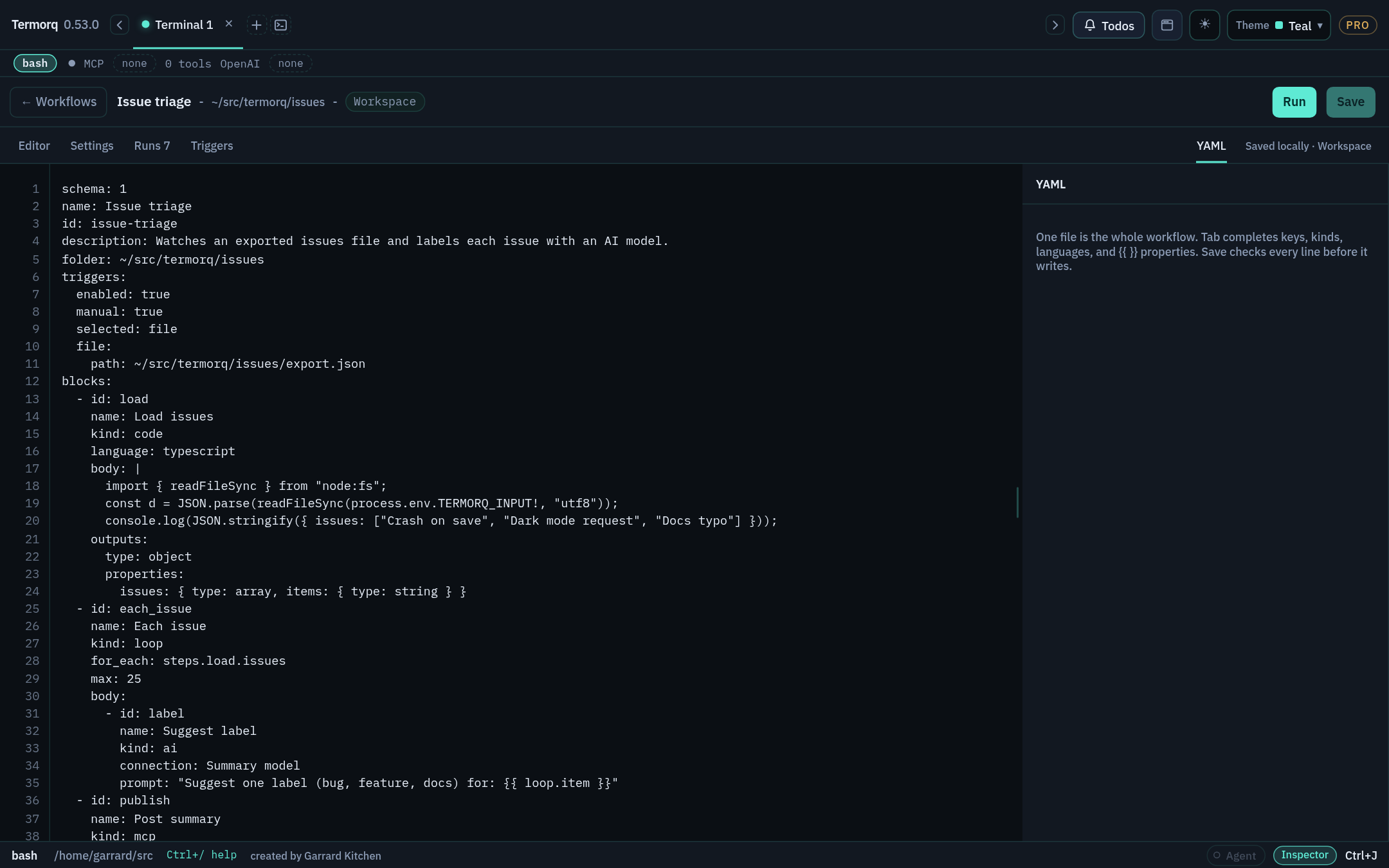
Anatomy of a workflow file

Goal

Recognise every root key and write a complete file from memory. Time: 15 minutes.

The same workflow as YAML The same workflow as YAML

Annotated example

schema: 1                        # required: 1, or 2 when you use `target`
name: Refresh Acme users         # required: unique, ignoring case and surrounding spaces
id: refresh-acme-users           # required: a letter, then letters, numbers, or hyphens
description: |                   # optional Markdown, shown when the list row is expanded
  Pulls users hourly and posts a summary.
folder: ~/src/acme-apis          # project folder: TERMORQ_FOLDER and the code_file base
timeout_secs: 600                # per-block timeout (default 600)
notices:                         # notice cards; each defaults to true
  started: true
  progress: true
  finished: true
  failed: true
  stopped: true
  skipped: true
inputs:                          # named workflow inputs → inputs.<name>
  region:
    type: string
secrets:                         # names resolved from the secret store → secrets.<name>
  - ACME_CLIENT_SECRET
env:                             # extra env vars for code blocks; values are templates
  ACME_REGION: "{{ inputs.region }}"
triggers:                        # see Stage 8
  enabled: true
  manual: true
  selected: schedule
  schedule:
    every: 1h
blocks:                          # required: up to 40, including loop bodies
  - id: list_users
    kind: http
    method: GET
    url: mock://users

Root keys

KeyRequiredPurpose
schema✓1, or 2 when the file uses target
name✓Display name
id✓Stable ID, used in run folders, CLI commands, and HTTP hook URLs
blocks✓The steps
descriptionMarkdown description (raw HTML and images aren’t rendered)
folderProject folder
timeout_secsPer-block timeout in seconds
noticesstarted, progress, finished, failed, stopped, skipped
inputsDeclared inputs (each with a schema such as type)
secretsA list of secret names
envEnvironment variables for code blocks
triggersTrigger configuration
targetWhere code runs (localHost, useTab, or a WSL mapping). Requires schema: 2
skillsSkill binding for AI blocks
canvaspositions: { <block id>: { x, y } }, written by the editor when you save
consentWritten by the app when you confirm a trigger. Don’t edit it by hand

Any other key fails Save with property ‘…’ is not recognised.

Check your run

Paste the annotated example into a new workflow and click Save. It saves (you can leave the comments in). Then delete id: and click Save again: you get ‘id’ is missing.

Exercise

Add a notices block that shows only failure cards.

Details
notices:
  started: false
  progress: false
  finished: false
  failed: true
  stopped: false
  skipped: false

Reference: Build a workflow → YAML

Block keys by kind

Goal

Know which keys each block kind accepts. Use this page as a cheat sheet. Time: 10 minutes.

Common to every block

KeyPurpose
idLetters, numbers, and underscores. Unique within the file
nameThe label shown on the canvas
kindcode, code_file, http, mcp, ai, decision, or loop
enabledfalse skips the block (Node execution off)
thenThe next block ID, or break/continue inside a loop
outputsThe output schema
usesInput paths (code blocks)
skills, targetAdvanced: skill binding, and the execution target (target needs schema: 2)

Kind-specific keys

​
- id: transform
  kind: code
  language: python        # bash | powershell | python | csharp | rust | javascript | typescript
  body: |
    print('{"ok":true}')
  input_sample: '{}'      # Execute step fixture only
- id: script
  kind: code_file
  path: scripts/report.py # relative to `folder`
  args: --fast --limit 10 # one string, split on whitespace
  language: python        # optional: inferred from the extension
- id: call
  kind: http
  endpoint: Create message   # a saved endpoint (real requests)
  method: POST
  headers: ...               # copied from the saved endpoint
  body: "{{ steps.prep.request_json }}"
# or, offline:
#  url: mock://users
- id: tool
  kind: mcp
  server: Demo tools
  tool: echo
  arguments: "{{ steps.prep.request_json }}"   # must resolve to a JSON object
- id: summarise
  kind: ai
  connection: Summary model
  system: Return one JSON object with "summary".
  prompt: "Summarise: {{ steps.echo.message }}"
  max_tokens: 128
  input_sample: '{"trigger":{"text":"hi"}}'
- id: choose
  kind: decision
  branches:
    - when: steps.lookup.total > 0
      goto: notify
    - else: true
      goto: done
- id: each
  kind: loop
  for_each: steps.list.items   # or: repeat: 3   or: while: <condition>
  max: 20                      # default 20, ceiling 100
  body:
    - id: child
      kind: code
      language: bash
      uses: [loop.item]
      body: jq -c '{seen: .loop.item}' "$TERMORQ_INPUT"
Not runnable yet

kind: git (Git file) appears in the editor, but the runner and the save check don’t accept it. See Git file.

Check your run

Put url: mock://x on a code block and click Save. You get property ‘url’ is not recognised., because each kind accepts only its own keys.

Exercise

Which kinds accept input_sample?

Details

code and ai. These are the two kinds with an isolated Execute step editor.

Templates and chips

Goal

Know exactly where {{ path }} templates are expanded. Time: 5 minutes.

FieldTemplate expanded?
HTTP url, body, headers✓
MCP arguments (and server/tool)✓
AI system, prompt✓
Root env values✓
Code body✗ Never. Use uses and TERMORQ_INPUT
Code file source✗
Decision when, loop for_each/whileThese take a path or condition without braces, for example steps.x.total > 0

In the editor, templates appear as chips. In YAML, Tab completes {{ }} properties that are in reach.

The JSON-safety rule

Never place a template between JSON quotes:

# ✗ breaks when message contains " or a newline
body: '{"message":"{{ steps.echo.message }}"}'

# ✓ serialise the whole object in code, then insert it as one value
body: "{{ steps.prepare.request_json }}"

Secrets in templates

{{ secrets.NAME }} works in templated fields once NAME is listed under secrets:. The value is masked in run records and redacted from logs.

Check your run

Put {{ steps.echo.message }} inside a Python body and run it. The literal braces are printed, and no value is inserted.

Exercise

You need an HTTP header Authorization: Bearer <token>, where the token is the secret ACME_TOKEN. Write the root key and the template.

Details
secrets:
  - ACME_TOKEN
# in the HTTP block (or, preferably, in the saved endpoint's own auth settings):
#   Authorization: "Bearer {{ secrets.ACME_TOKEN }}"

It’s usually better to configure authentication on the saved endpoint, so the workflow never mentions the token.

Validate, complete, and keep files tidy

Goal

Author YAML quickly and catch every error before you run anything. Time: 10 minutes.

In the YAML tab

  • Tab completes keys, legal values (kinds, languages, and trigger presets), and {{ }} properties.
  • Esc closes the list and stays on the page. There’s no Monaco editor, so expect a lightweight text editor.
  • Save shows up to 20 reasons, sorted by line and column.

Outside the app

termorq-cli workflow runs the same checker and prints the same sentences. If a file has an error, it doesn’t run:

termorq-cli workflow list
termorq-cli workflow run refresh-acme-users
# Line 19: property 'foo' is not recognised.

Where files live

SourcePath
Yoursworkflows/user/<id>.yml in the app data folder
Workspace.ai-terminal/workflows/<id>.yml in an open team workspace (the app never commits or pushes it)
IncludedShipped with the app and read-only. Saving one writes your copy, which overrides the included version
Warning

Workspace files are shared with your team. A raw token in one of them is refused by the team-workspace scrubber. Use secrets: names instead.

Check your run

After saving, termorq-cli workflow list shows your workflow with source yours.

Exercise

Write a deliberately broken file containing: an invalid workflow ID, a repeated key, and a block ID with a hyphen. Predict all three messages, then check your predictions with Save.

Details
  • 'id' must be a letter, then letters, numbers, or hyphens.
  • property '<key>' is repeated.
  • A block ID error for the hyphenated ID (block IDs allow letters, numbers, and underscores only).